MixUp White
MixUp White is a white continuous-light controller. The app provides on/off control and brightness from 0 to 100%.
Connection
Section titled “Connection”- Connect the light to its standard power supply and switch on the controller.
- In MixUp Control App, tap Find Devices.
- Select MixUp White, or leave the selection empty to search for all devices.
- Start the search and allow Bluetooth access.
- Find the MixUp White controller and tap Connect.
- Wait for synchronization and the ready status, then tap Open Dashboard.
If the controller is not found, move the phone or tablet closer, check the power, and scan again. You normally do not need to close the standard MixUp app, but another active BLE connection must not be using the controller.
Features
Section titled “Features”| Feature | Range or result |
|---|---|
| Light power | On or off |
| Brightness | 0–100% in 1% steps |
| Action scenes | Separate values for Waiting and Recording |
| Group control | Apply settings together with other devices |
Open Devices, then the MixUp White card:
- Enable Entire Strip controls the light;
- Brightness sets the required level;
- the value is sent to the controller after you release the slider.
Control screen
Section titled “Control screen”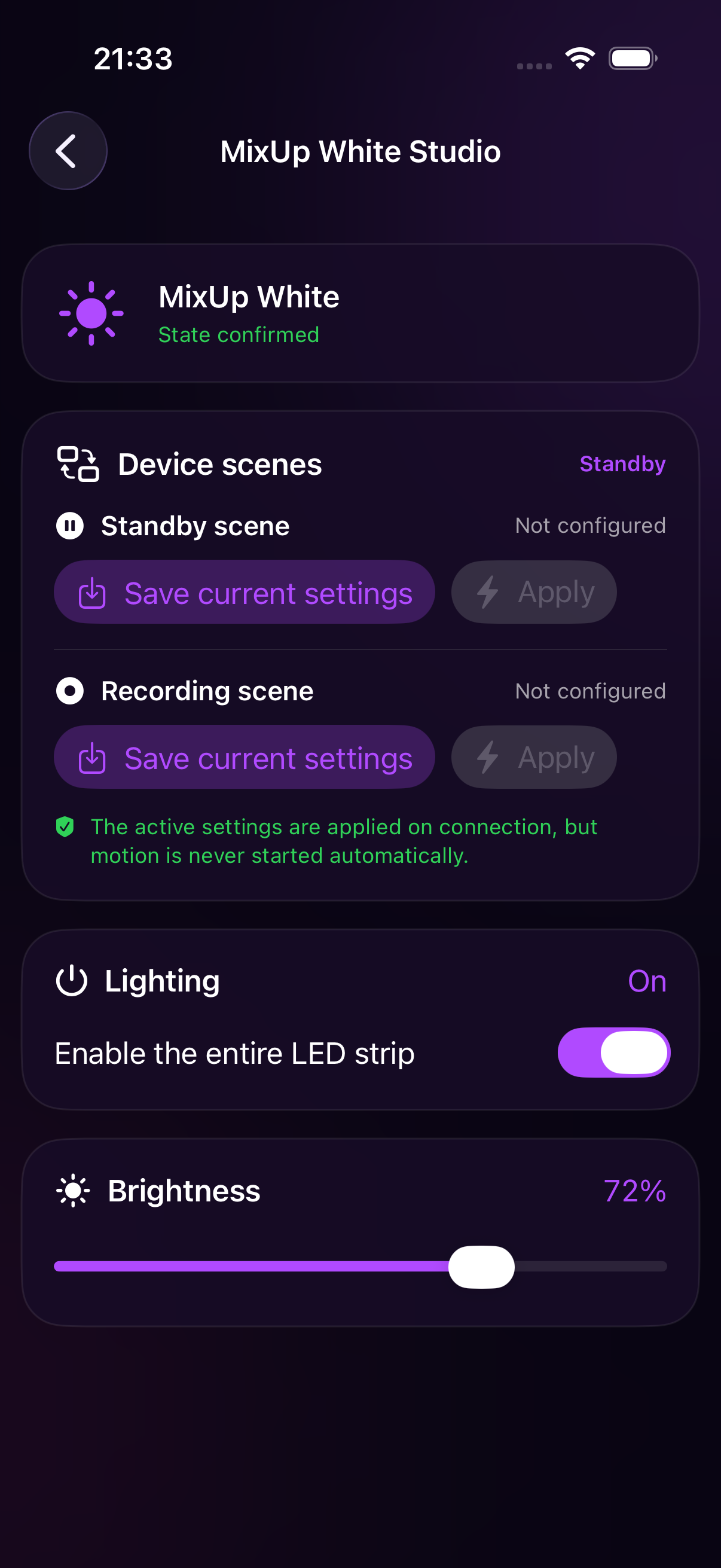
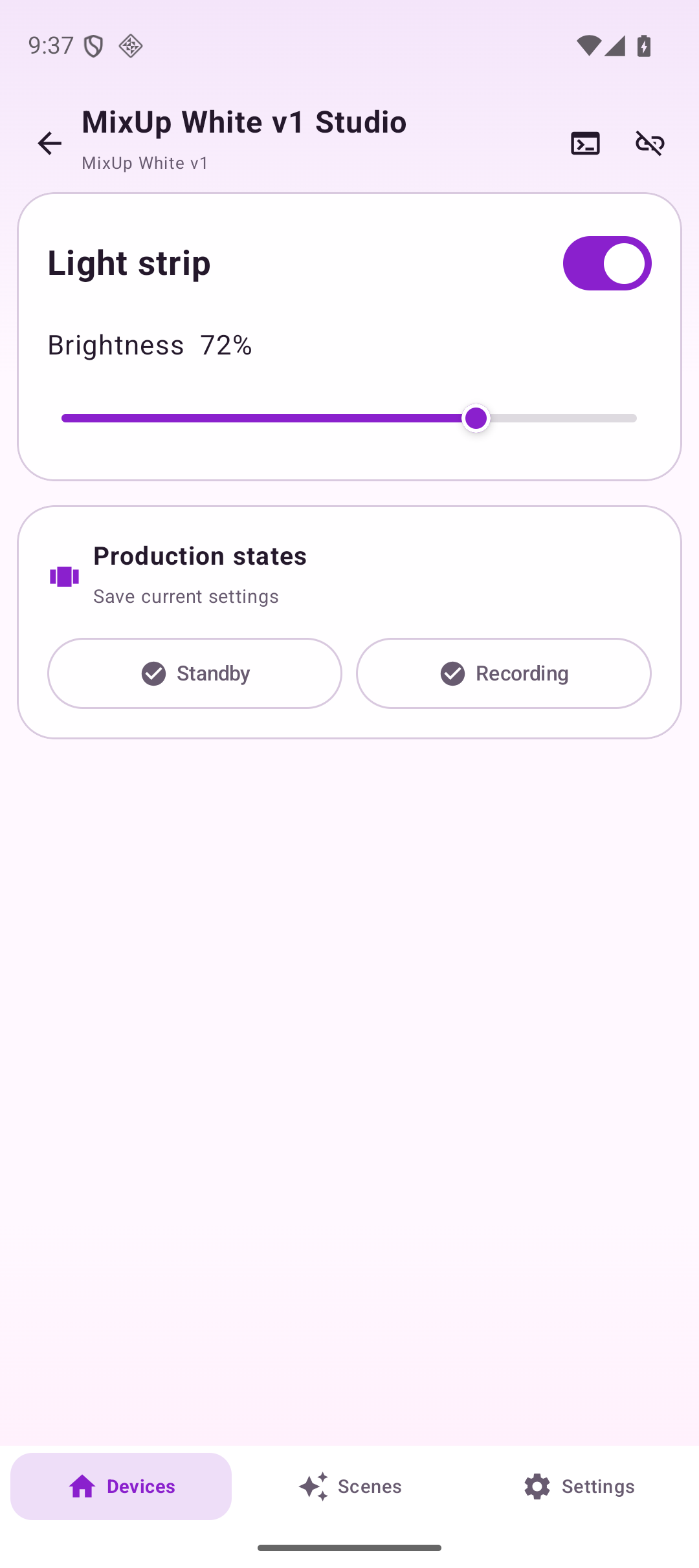
Configure an Action scene
Section titled “Configure an Action scene”Action scenes are the app’s Waiting and Recording work states.
- Open the MixUp White card.
- Set the power state and brightness for the first state.
- Under Device Scenes, find Waiting Scene or Recording Scene.
- Tap Save Current Settings. If the scene is already configured, the button is labeled Update.
- Configure the second light state and save the other scene.
- Tap Apply to test each scene.
You can also configure every device in the setup, open Scenes, and tap Save Current Group for the required state. This replaces the entire group’s membership and settings.
Notes and useful practices
Section titled “Notes and useful practices”- The MixUp White off command actually sets controller brightness to zero. When switched on again, the app restores the saved brightness.
- The controller does not report its actual current brightness to the app. The UI may therefore show the state as unconfirmed; this is a protocol limitation, not a connection error.
- After using another phone or the standard remote, set brightness again in MixUp Control App before saving a scene.
- A useful setup is 10–30% brightness while waiting and the required working level while recording. This reduces heat and power use between takes.
- The group On and All Off buttons on the main dashboard control MixUp White together with the other lights.
For combined device workflows, see Group control and Action scenes.