Create a project and save your work
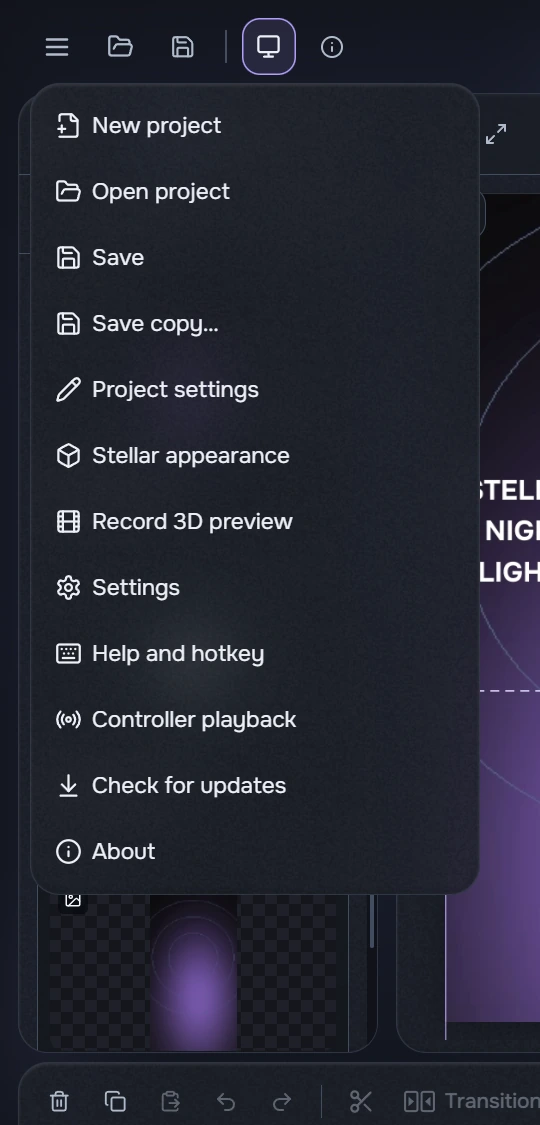
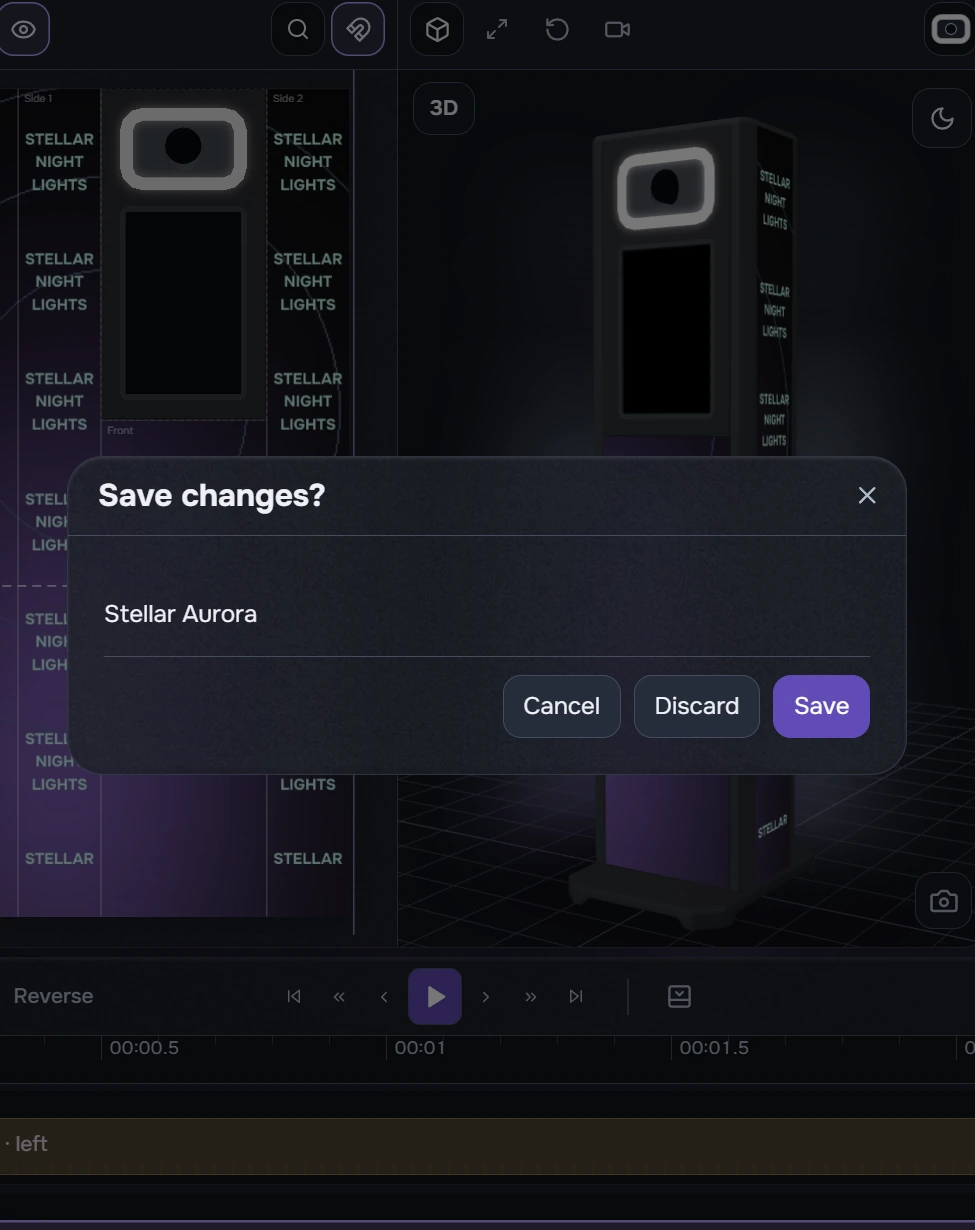
- Open the top-left menu and choose New project. When switching projects or closing with unsaved changes, choose Save, Don’t save or Cancel. Cancel keeps your work open.
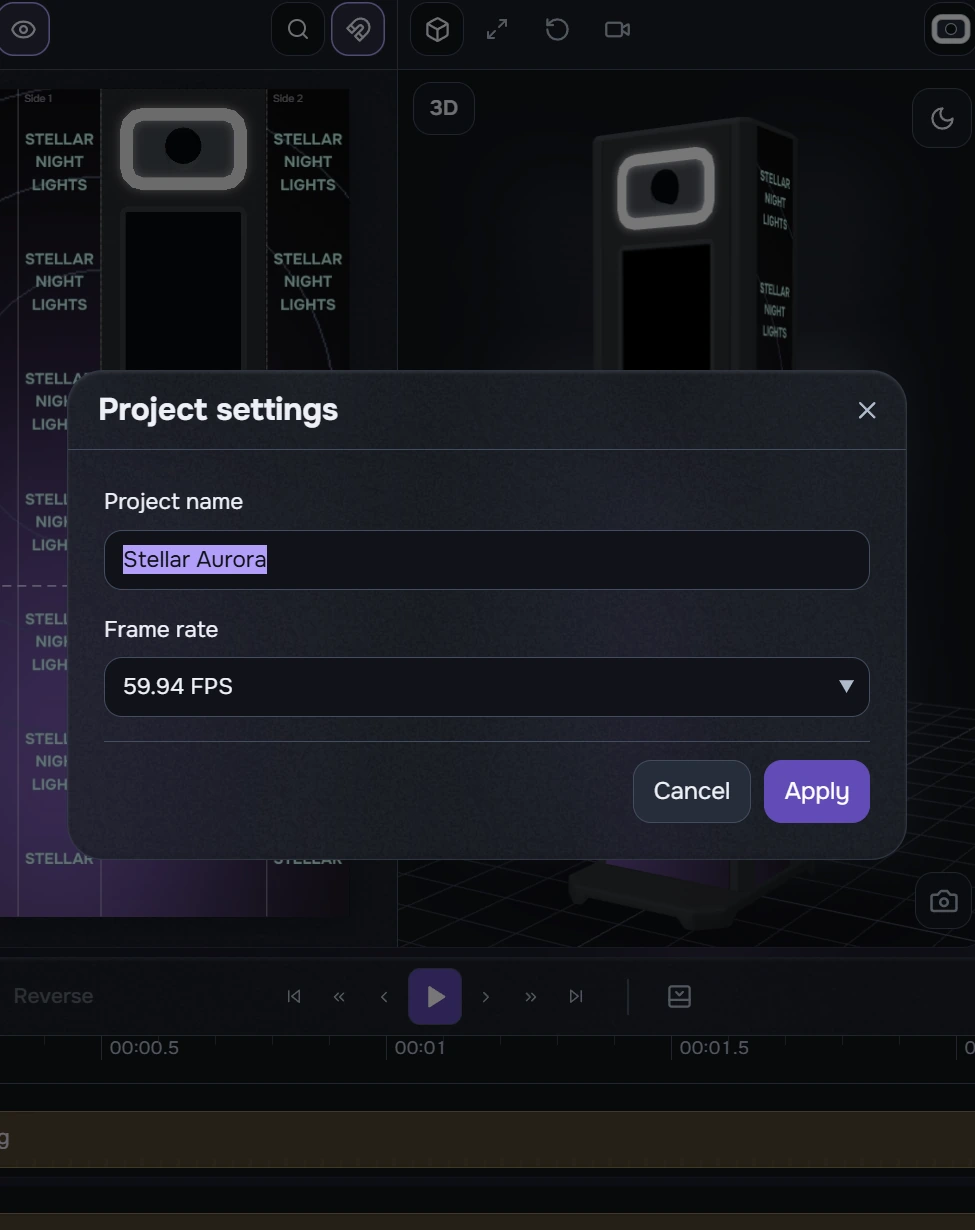
- Open Project settings and name the project Stellar Aurora. 30 FPS (29.97 frames per second) suits a first video; the screenshot selects 59.94 FPS. Click Apply.
- Click Save or press Ctrl+S and choose a working folder. Saving again updates the open file. Save copy… creates a separate copy. Ctrl+O opens an existing project.
A .stellar project stores your edit and settings; an MP4 is the finished video. Projects reference source media, so keep those files together and move the whole working folder. Change the name and frame rate through Project settings.
The last project may reopen at startup. Automatic recovery keeps one backup, updated about once a minute while you edit, without copying source media. It is a recovery aid, not a full version history: save separate versions yourself.
If another application changed the project file, save a copy or reopen the current version. A backup failure is logged separately and does not undo a successful project save.
Project name and unsaved changes