Export your finished MP4
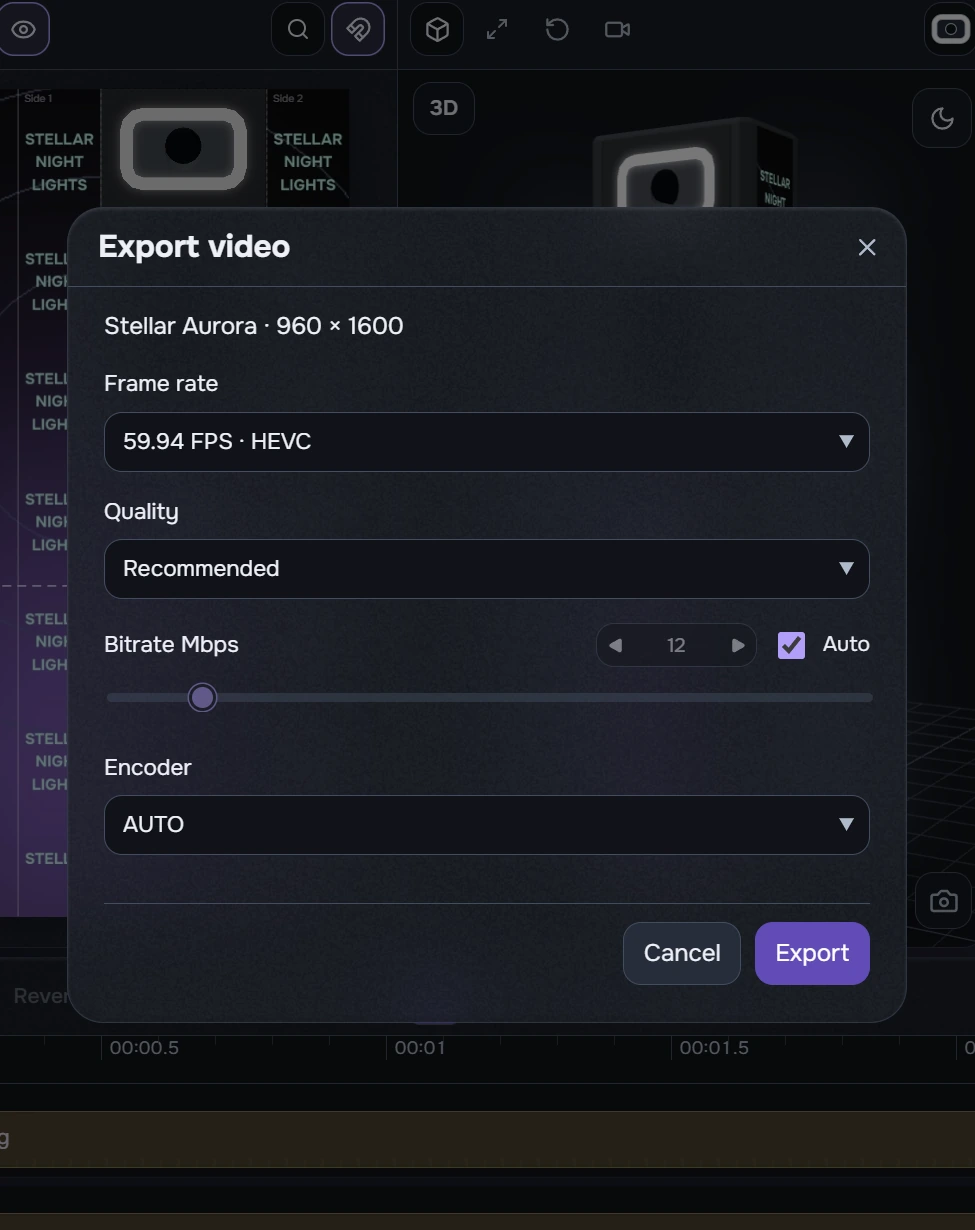
- Save your project. Click Export in the header or press Ctrl+E.
- For your first video, choose 30 FPS · HEVC, Recommended quality, automatic bitrate and Auto encoding. The exact rate of the “30 FPS” profile is 30000/1001 (approximately 29.97 frames per second).
- For smoother output, choose the 59.94 FPS · HEVC profile: the exact rate is 60000/1001, approximately 59.94 frames per second. If source video has a lower frame rate, the application offers Repeat frames or Interpolate. Repetition is faster but retains the source motion steps; interpolation creates intermediate frames, takes longer and may introduce artefacts.
- Click Export and wait for completion. Preview may pause while rendering.
With manual bitrate, the slider/number sets the data rate and the quality preset becomes unavailable. Keep Auto unless you need a particular bitrate. Preparing 59.94 fps is separate from a layer’s Motion effect. The application exports only MP4 with HEVC; file size depends on bitrate and duration.
Repeat frames or interpolate
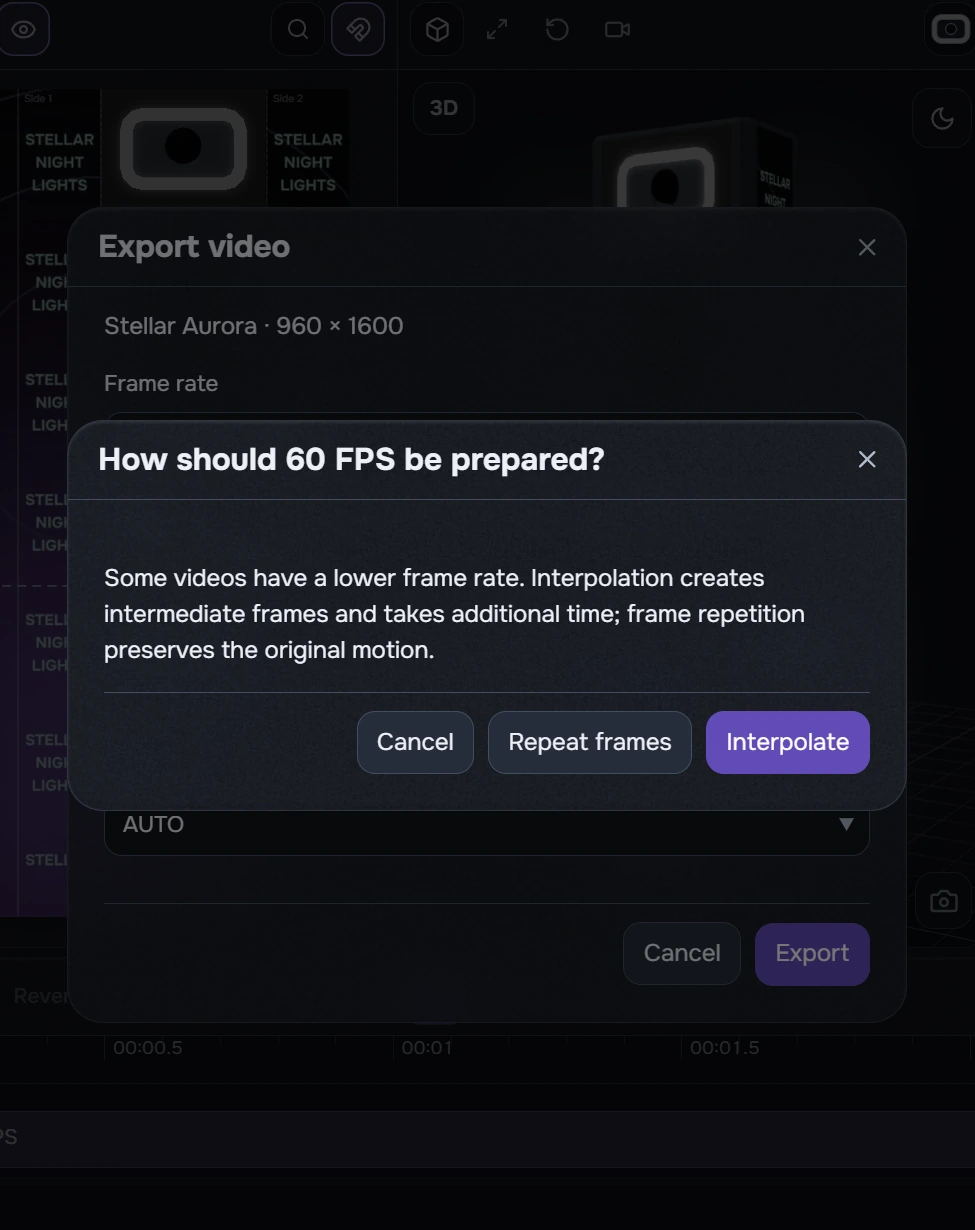
Repeat frames preserves the original motion steps. Interpolate creates intermediate frames and takes additional time. Cancel returns to export settings. The current selector calls the profile 59.94 FPS · HEVC, even when the explanatory dialog says “60 FPS”.
Export: check the result
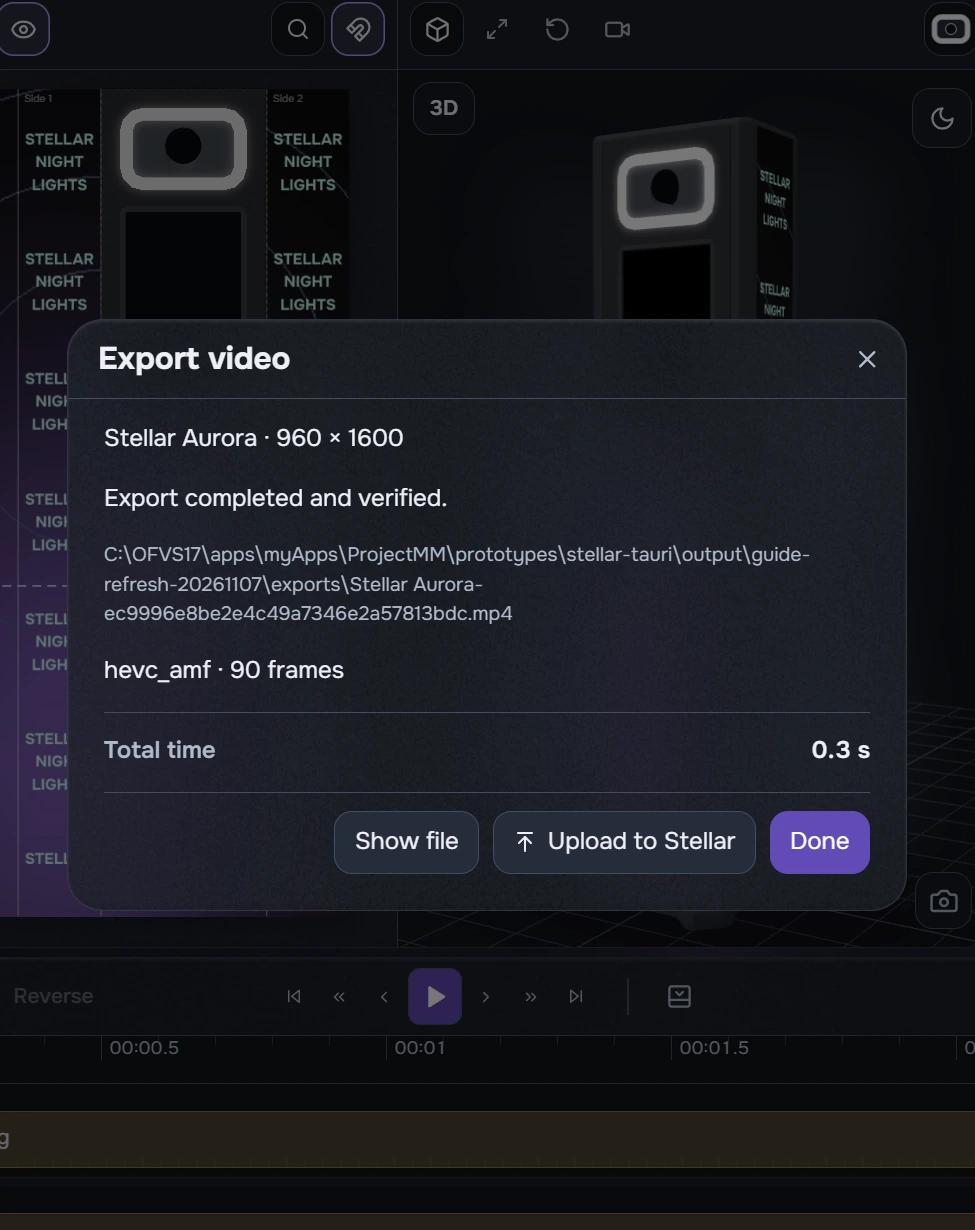
Progress covers the entire job and does not restart at each stage. Output verification remains part of export. Use Cancel export if needed. After an error, correct the cause and start the job again.
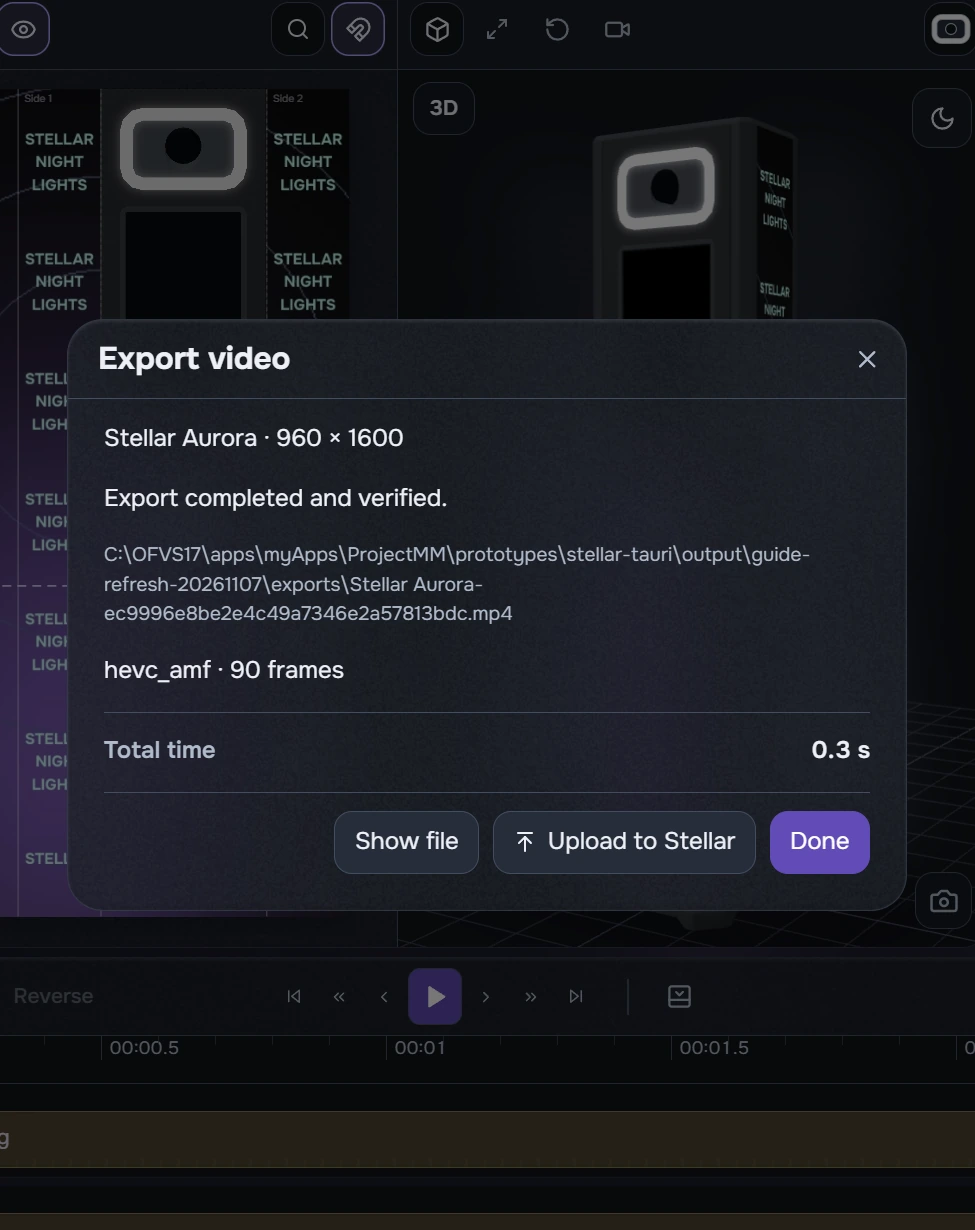
Without interpolation, the result shows only Total time up to the verified completed file. Both detailed stage rows are hidden, rather than filled with zeros.
- Wait for “Export completed and verified”. Click Show file and play the MP4 to check text, edges and transitions.
- Click Upload to Stellar to open upload with the actual MP4 from this export as its one queued item. It does not render again.
- If that file was moved or deleted, upload reports an error. Return to the result and restore the file or export again. Done closes the dialog.
Export: interpolation timing
Interpolation applies only during export. The application uses its optimal mode automatically; there is no separate interpolation-quality selector or preview-interpolation switch.
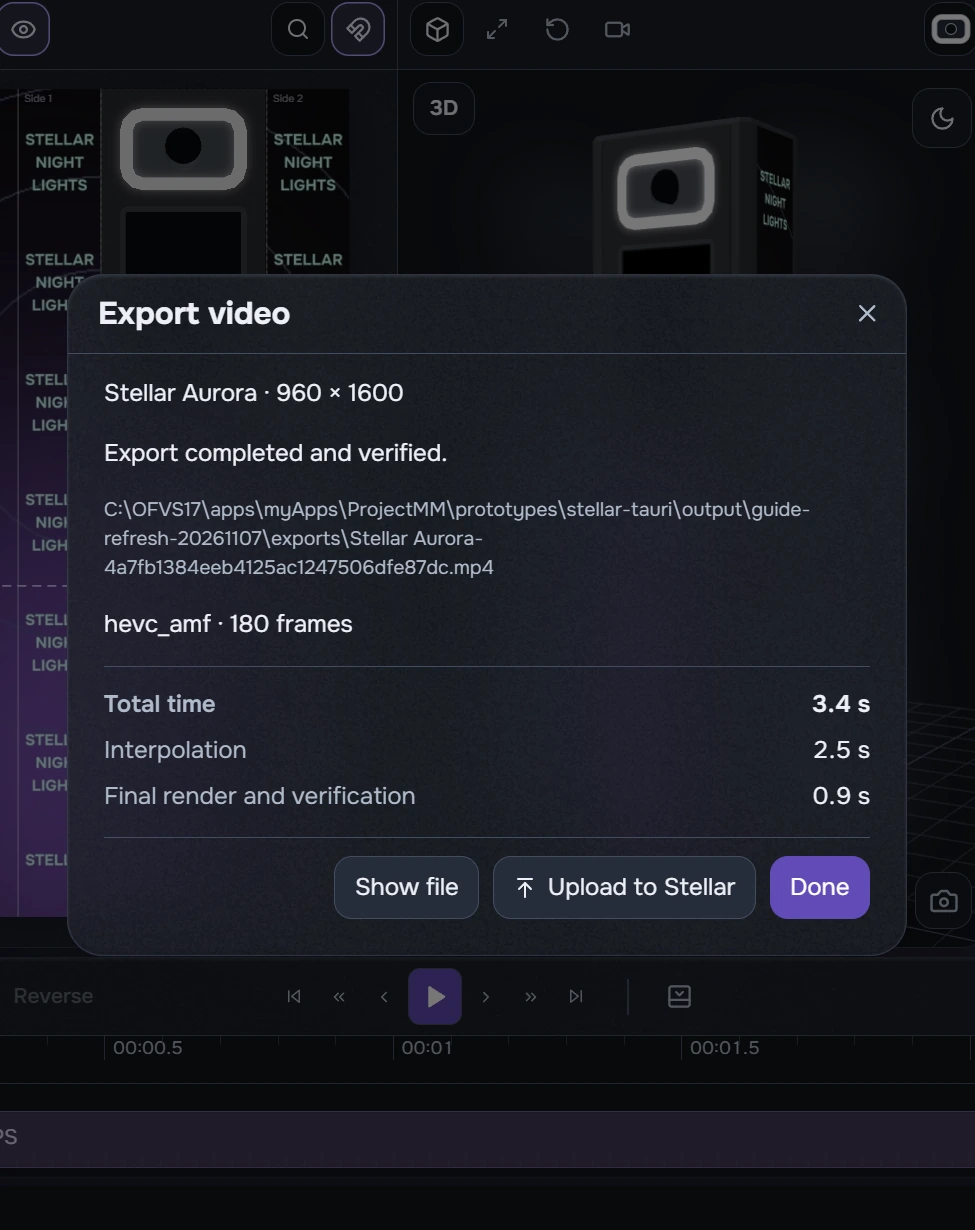
When the job returns separate timings, the result shows Total time, Interpolation and Final render and verification. Preparing and validating intermediate files belong to interpolation; composition, encoding and MP4 verification belong to the final stage.
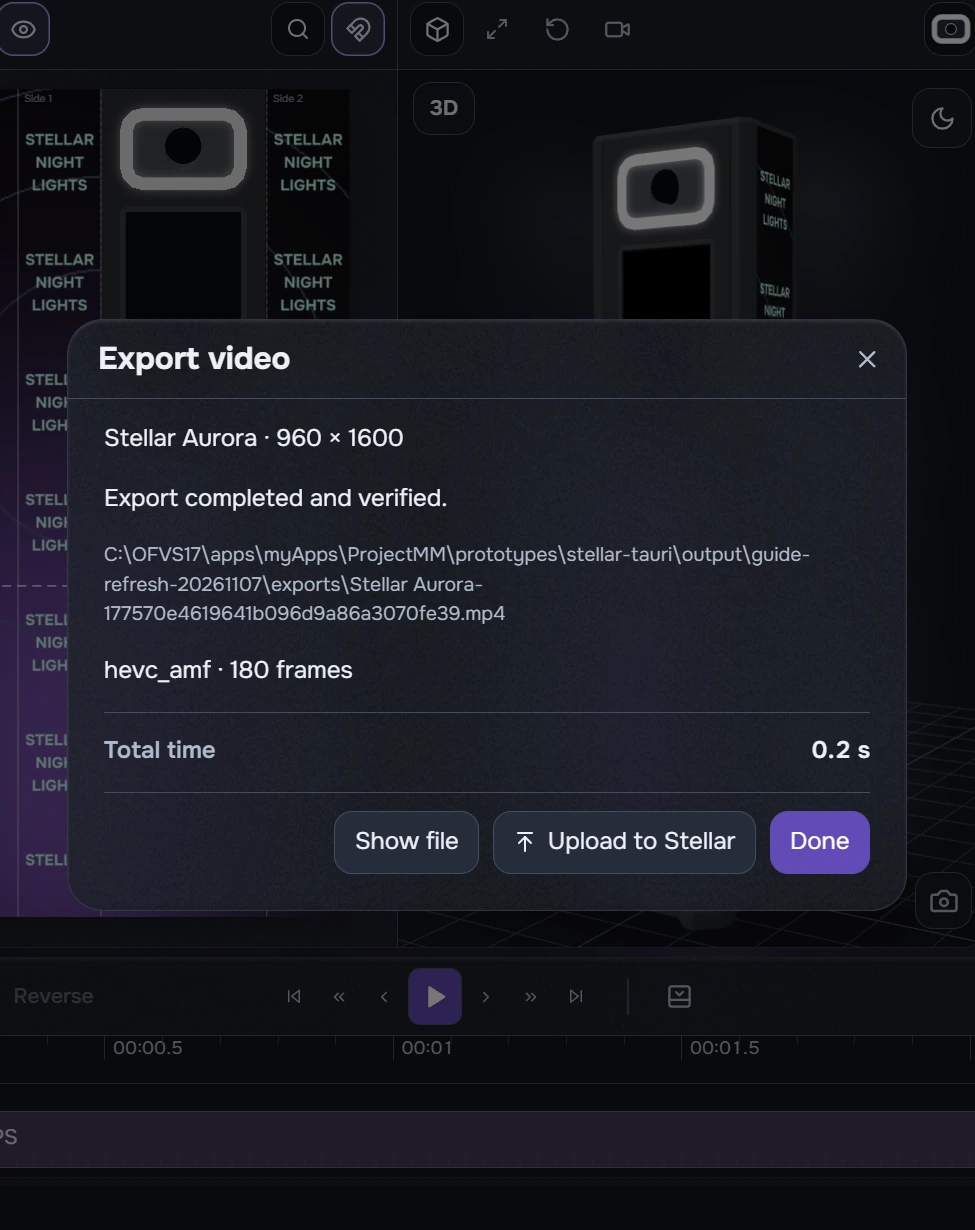
A ready cache speeds up repeat preparation. The fresh repeat result shows only Total time; the rows depend on the timings returned. An absent row does not prove that interpolation was unused, and a 0.0 s value is not guaranteed.
Values are rounded to tenths of a second, so displayed stages may differ from the total by 0.1 seconds. Time spent waiting for your response in a dialog is excluded from the measured job.