Spinner360
Spinner360 is a motorized platform for circular capture. MixUp Control App controls speed, acceleration, start, stop, and safe stop when Bluetooth is lost.
Safety before connecting
Section titled “Safety before connecting”- Clear the rotating area and make sure cables, clothing, and props cannot enter the platform.
- Check platform stability and the permitted load.
- The operator must be able to see the platform during startup.
- Do not use the software Stop button as a replacement for the hardware emergency stop.
Connection
Section titled “Connection”- Power on Spinner360 without starting rotation.
- In MixUp Control App, tap Find Devices.
- Select Spinner360, or search for every device.
- Allow Bluetooth access.
- Find Spinner or DT-SPIN and tap Connect.
- Wait for firmware, state, speed, and safety settings to synchronize.
- Open the dashboard and confirm that the state is Stopped.
Initial Spinner360 synchronization can take longer than connecting a light. The app queries several settings in sequence and supports both older and newer controller versions.
Features
Section titled “Features”| Feature | Range or result |
|---|---|
| State | Check whether the platform is rotating, stopped, or still being queried |
| Speed | 0–100 in the UI |
| Acceleration | 10–100%, when supported by firmware |
| Actual acceleration time | From 20 seconds at 10% to 1 second at 100% |
| Stop on BLE loss | Enable or disable controller protection |
| Movement control | Start and stop |
| Action scenes | Speed, acceleration, BLE protection, and a separate movement action |
Manual control
Section titled “Manual control”- Open Devices → Spinner360.
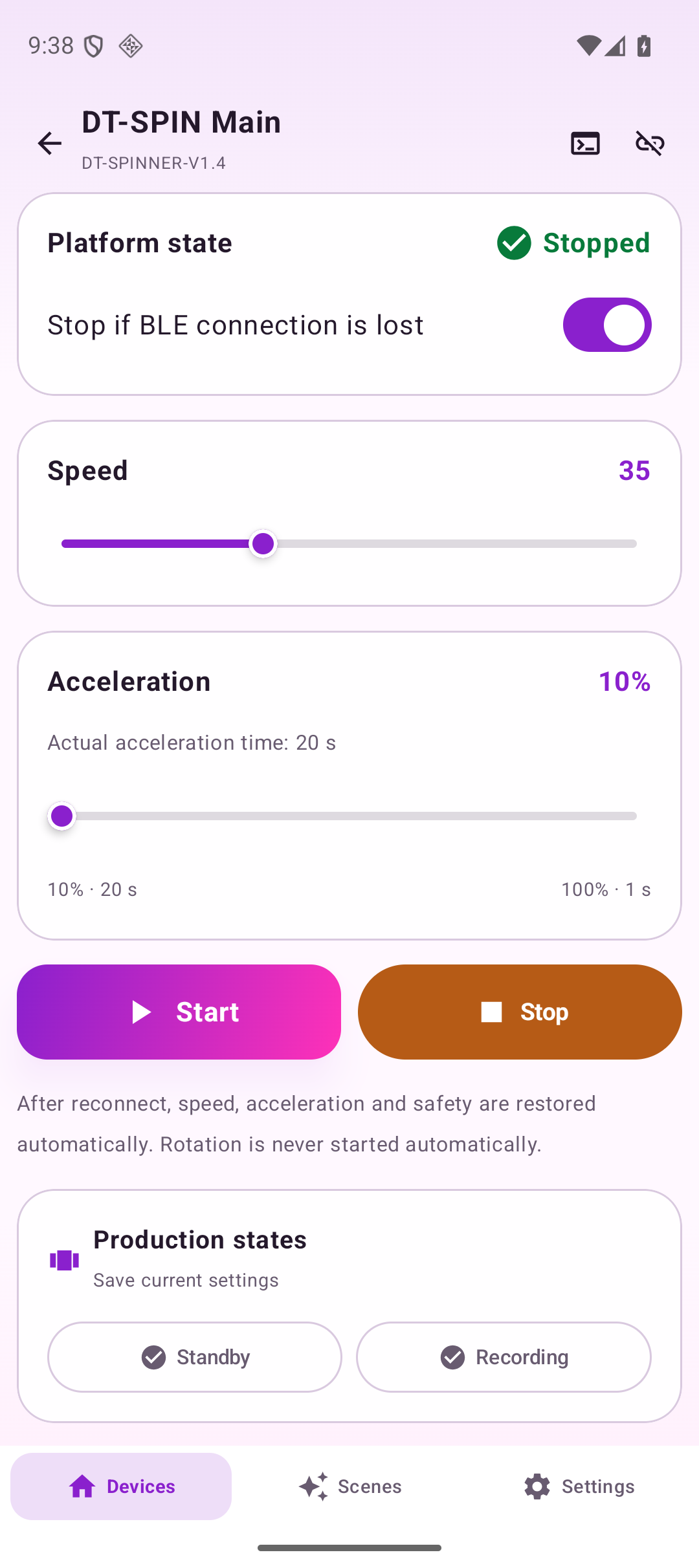
- Enable Stop on BLE Loss. Keep this protection enabled during normal operation.
- Set Speed.
- If supported by the controller, set Acceleration. The estimated acceleration time appears below the slider.
- Confirm that the area is clear and tap Start.
- For a normal stop, tap Stop.
If the acceleration controls are absent or marked unconfirmed, the controller did not answer the firmware or acceleration queries. Older Spinner versions may not support this setting.
Control screen
Section titled “Control screen”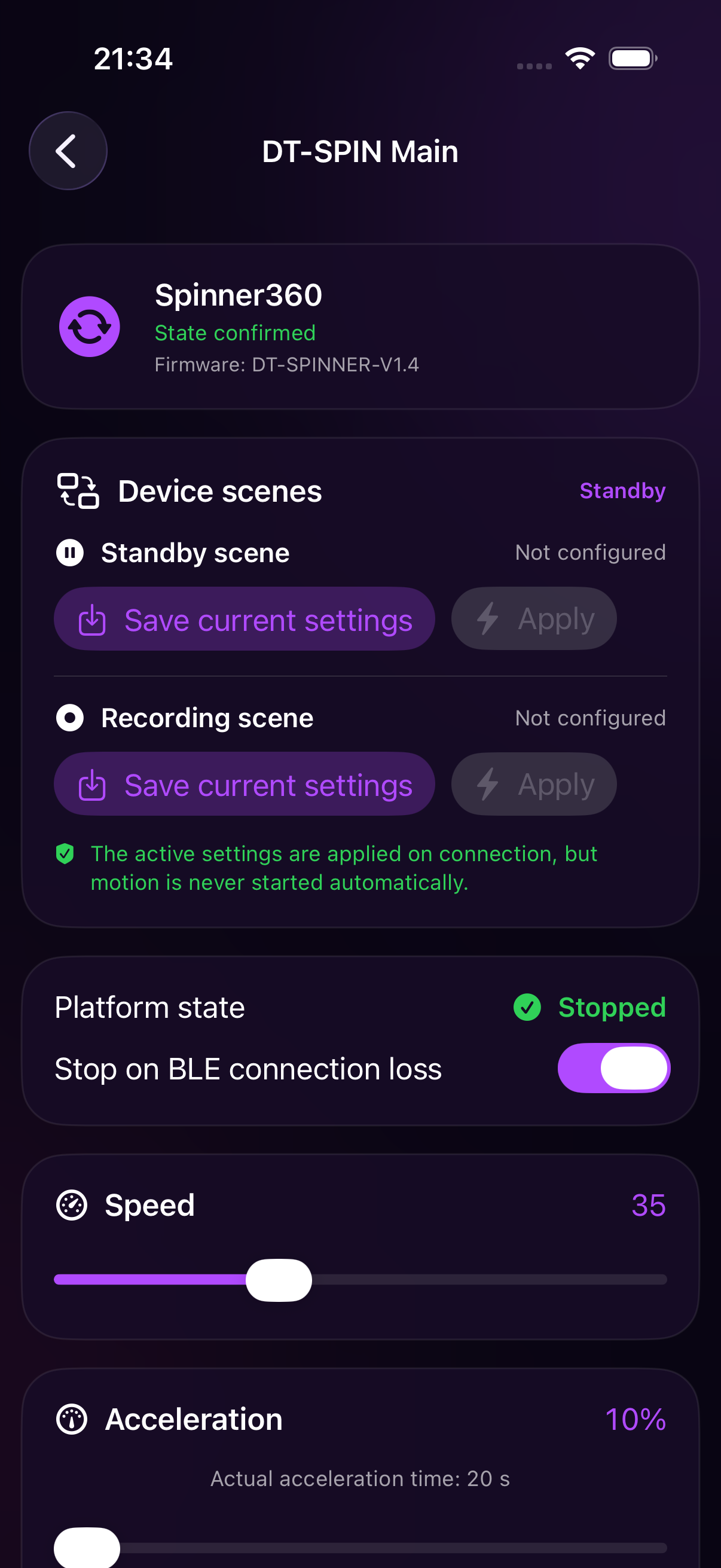
Configure Spinner360 for an Action scene
Section titled “Configure Spinner360 for an Action scene”Saving speed alone is not enough for Spinner360. You must also choose the action to perform when the scene is applied.
- Open the Spinner360 card.
- Set speed, acceleration, and Stop on BLE Loss.
- Under Device Scenes, tap Save Current Settings for Waiting or Recording.
- Under Movement, select:
- Do Not Change — apply the settings but leave the current rotation unchanged;
- Stop — apply the settings and stop the platform;
- Start — apply the settings and start the platform after operator confirmation.
- Configure the other work state.
- Test the stop scene first. Test the start scene only after clearing the area.
Recommended production setup:
- Waiting — save the required base speed and select Stop;
- Recording — save the working speed and acceleration and select Start.
Applying scenes and reconnecting
Section titled “Applying scenes and reconnecting”- A scene that starts movement always requires on-screen confirmation because the hardware will physically move.
- Declining confirmation applies safe settings but does not start the platform.
- The active scene is restored after reconnection: speed, acceleration, and BLE protection are restored, and a stop command may be repeated.
- A start command is never repeated automatically after a connection loss.
- When the app moves to the background or disconnects normally, it sends a stop and a state query.
- While the platform rotates, the app maintains a protective BLE exchange about once per second.
Notes and useful practices
Section titled “Notes and useful practices”- A higher acceleration percentage means a shorter, sharper acceleration: 100% is about 1 second; 10% is about 20 seconds.
- Tune settings without people or props first, then save them in an Action scene.
- If the controller reports acceleration outside the recommended range, use the reset to 10% · 20 seconds.
- After changing settings with another remote, save the Action scene again in MixUp Control App.
- The group light-power buttons do not start or stop Spinner360. Use its own controls or Action scenes for movement.
For combined device workflows, see Group control and Action scenes.