MixUp Backlight v2
MixUp Backlight v2 is an RGB backdrop-lighting controller also known as SP63 or SPStellar. The app controls power, white-light brightness, RGB color, built-in effects, and effect speed.
Connection
Section titled “Connection”- Connect the lighting to the controller and apply power.
- In MixUp Control App, tap Find Devices.
- Select MixUp Backlight v2, or search for every type.
- Allow Bluetooth access.
- Find a device named MixUp, SP63, or SPStellar and tap Connect.
- Wait for the app to read state and firmware version, then open the dashboard.
Features
Section titled “Features”| Feature | Range or result |
|---|---|
| Entire-strip power | On or off |
| Brightness | 0–100% in 1% steps |
| Static color | RGB, no opacity |
| Built-in effect | Scene 0–255 |
| Effect speed | 0–100% in 10% steps |
| Action scenes | Power, selected mode, and its settings |
Open Devices → MixUp Backlight v2:
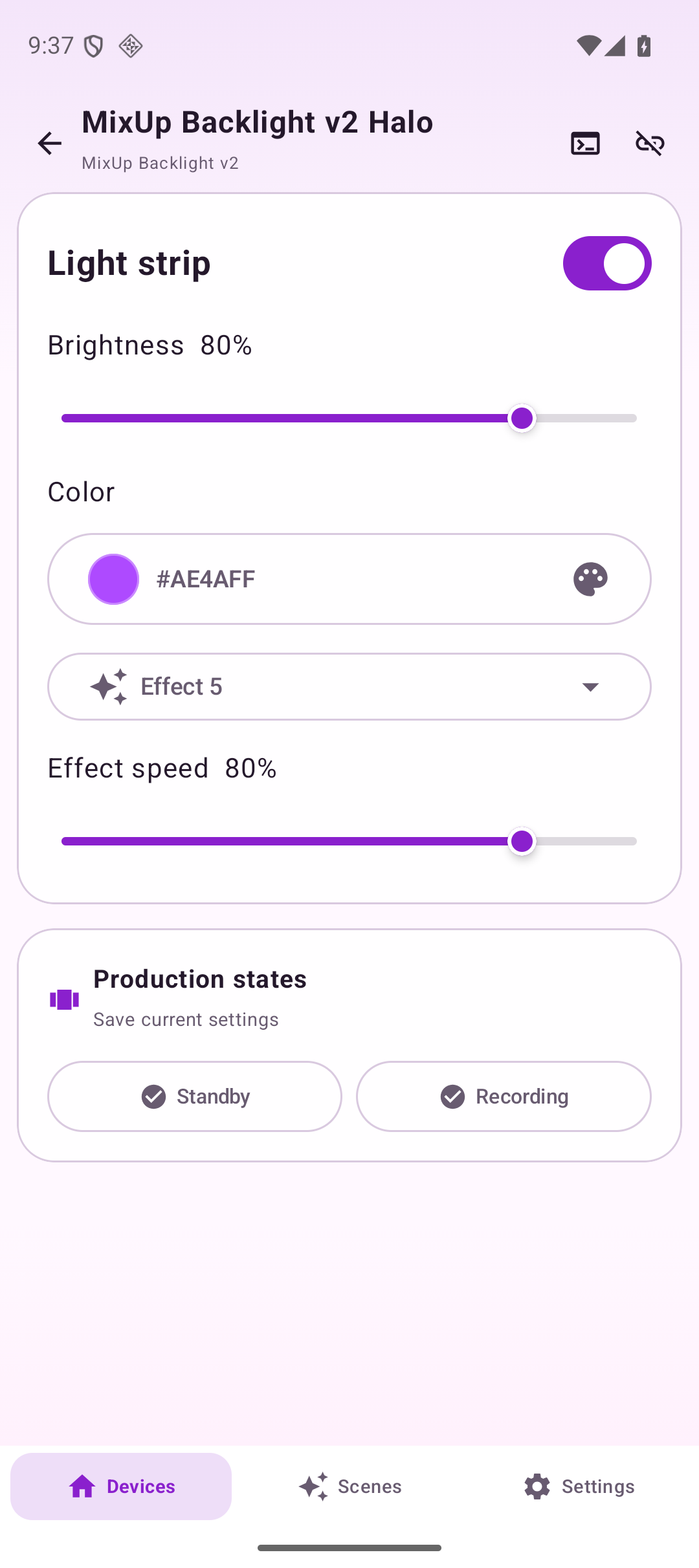
- Enable Entire Strip controls overall output power;
- Brightness switches the controller to white/brightness mode;
- Color switches it to static RGB mode;
- Effect starts the selected built-in scene;
- Effect Speed changes the rate in 10% steps.
Control screen
Section titled “Control screen”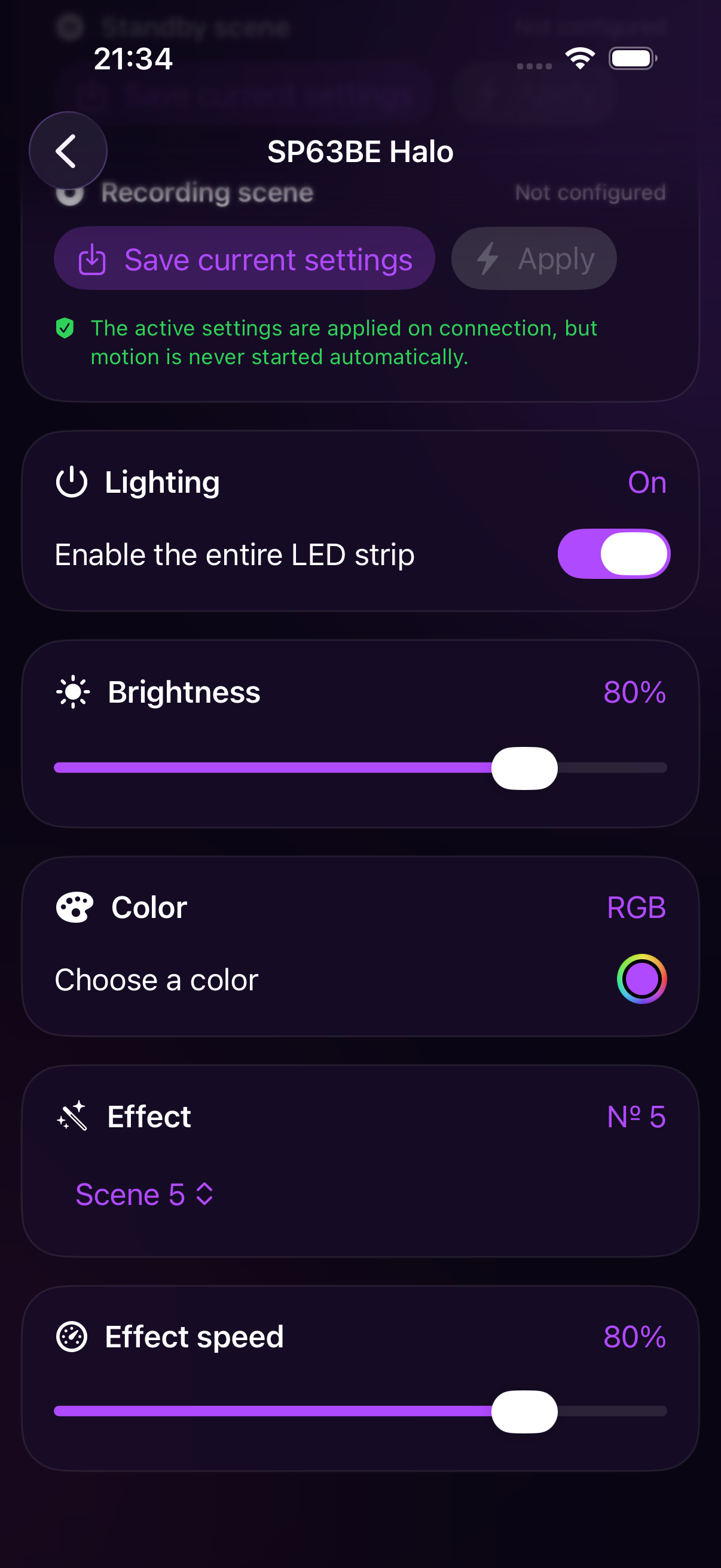
Configure an Action scene
Section titled “Configure an Action scene”- Open the MixUp Backlight v2 card.
- Turn on the strip and choose one mode: Brightness, Color, or Effect.
- If you selected an effect, set its speed.
- Under Device Scenes, save the current state for Waiting or Recording.
- Change the lighting and save the second work state.
- Apply both scenes in turn and verify the result on the strip.
When applying a scene, the app restores the selected light mode first and then the final power state. A saved off state therefore remains off even if the color command itself switches on the strip.
Notes and useful practices
Section titled “Notes and useful practices”- Brightness, Color, and Effect are separate modes. Before saving, make sure the required mode was the last one selected.
- The screen shows speed as 0–100%, but the controller stores 11 values from 0 to 10. The slider therefore moves in 10% steps.
- After selecting a static color, the previous effect remains in controller memory but does not run until you select effect mode again.
- The app reads confirmed power, mode, brightness, RGB, speed, and, when available, firmware-version fields.
- To avoid flicker on camera, first test the light at the working shutter speed and frame rate, then save that state as Recording.
- The group On and All Off buttons control Backlight v2 together with the other lights.
For combined device workflows, see Group control and Action scenes.