Place a layer on the right surface
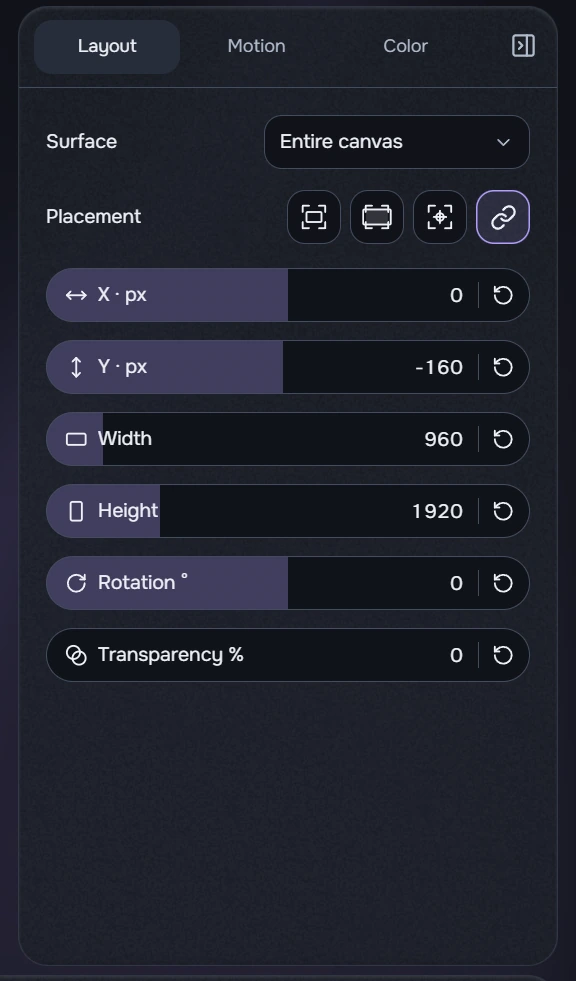
- Select the background clip on the timeline and open Layout on the right.
- For the background, select Entire canvas. Choose Fill to cover the area; image edges may be cropped. Fit shows the whole image, sometimes with empty margins. Center centres the layer.
- For a logo or text, choose a particular surface, such as Front. Check it in 2D and on the corresponding side of the 3D model.
Each parameter combines its label, filled strip, number and reset in one capsule. Click or drag along the horizontal strip, or enter an exact number on the right. The wheel does not edit these values. Reset restores the parameter’s neutral value, not necessarily the source dimensions.
In 2D, drag the layer frame to move it and corner handles to resize it; the opposite corner stays fixed. The frame may extend beyond the canvas. Locked layers cannot be edited. Placement does not change clip duration.
Exact values and aspect ratio
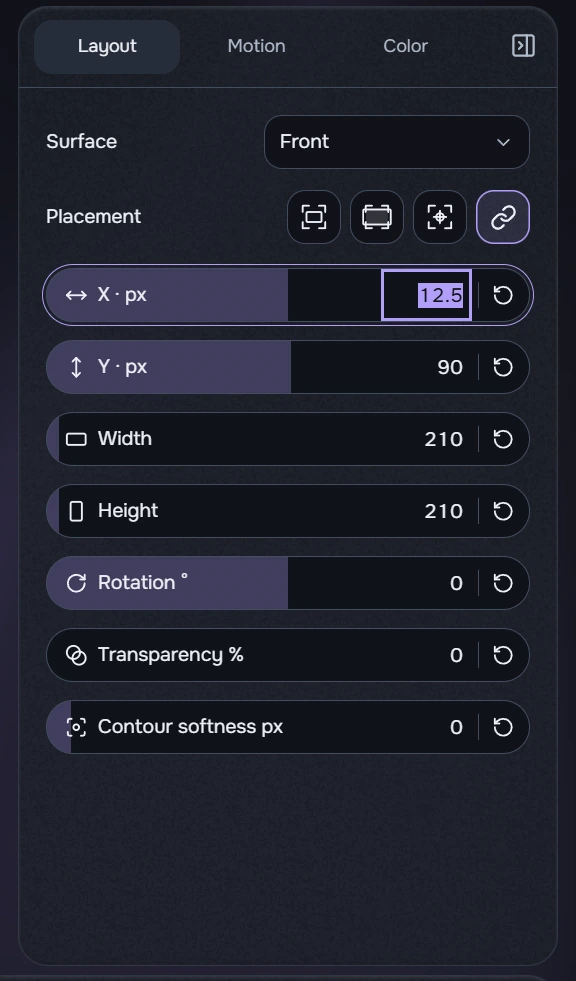
At rest, the number is rounded for display while the precise value is retained. Focusing the field selects the number and reveals its fractional part. A decimal point or comma is accepted; Enter finishes editing. On the strip, arrow keys change one step, PageUp/PageDown ten steps and Home/End go to range bounds. In the number field, Up/Down change one step.
The Keep ratio chain is beside Placement. It defaults on for images/video and off for text; the preferences are independent session settings, not a new project property. With the chain off, width and height change independently and actually stretch image/video content. Fit/Fill restore those modes; Center changes position only.
Free stretch and snapping
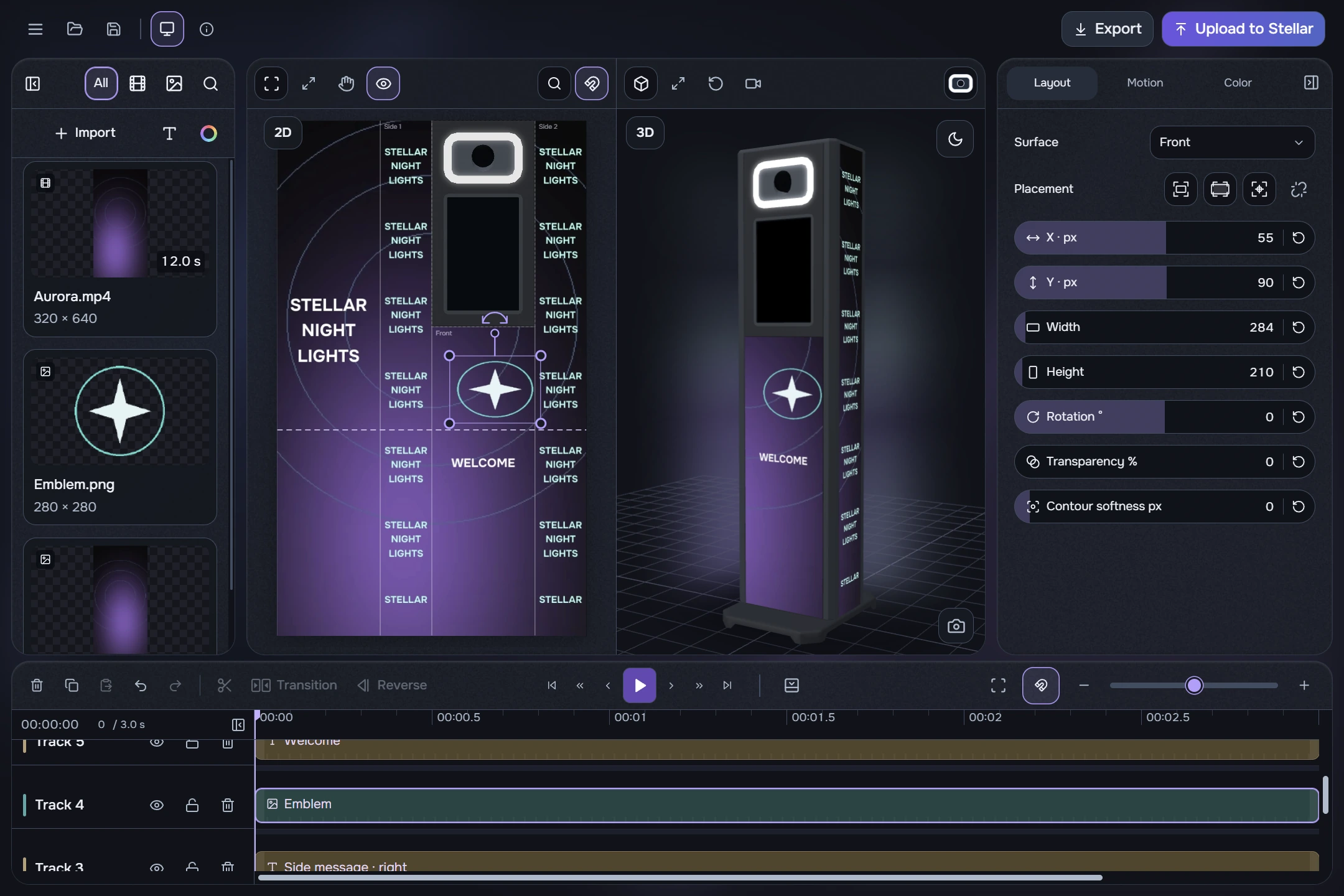
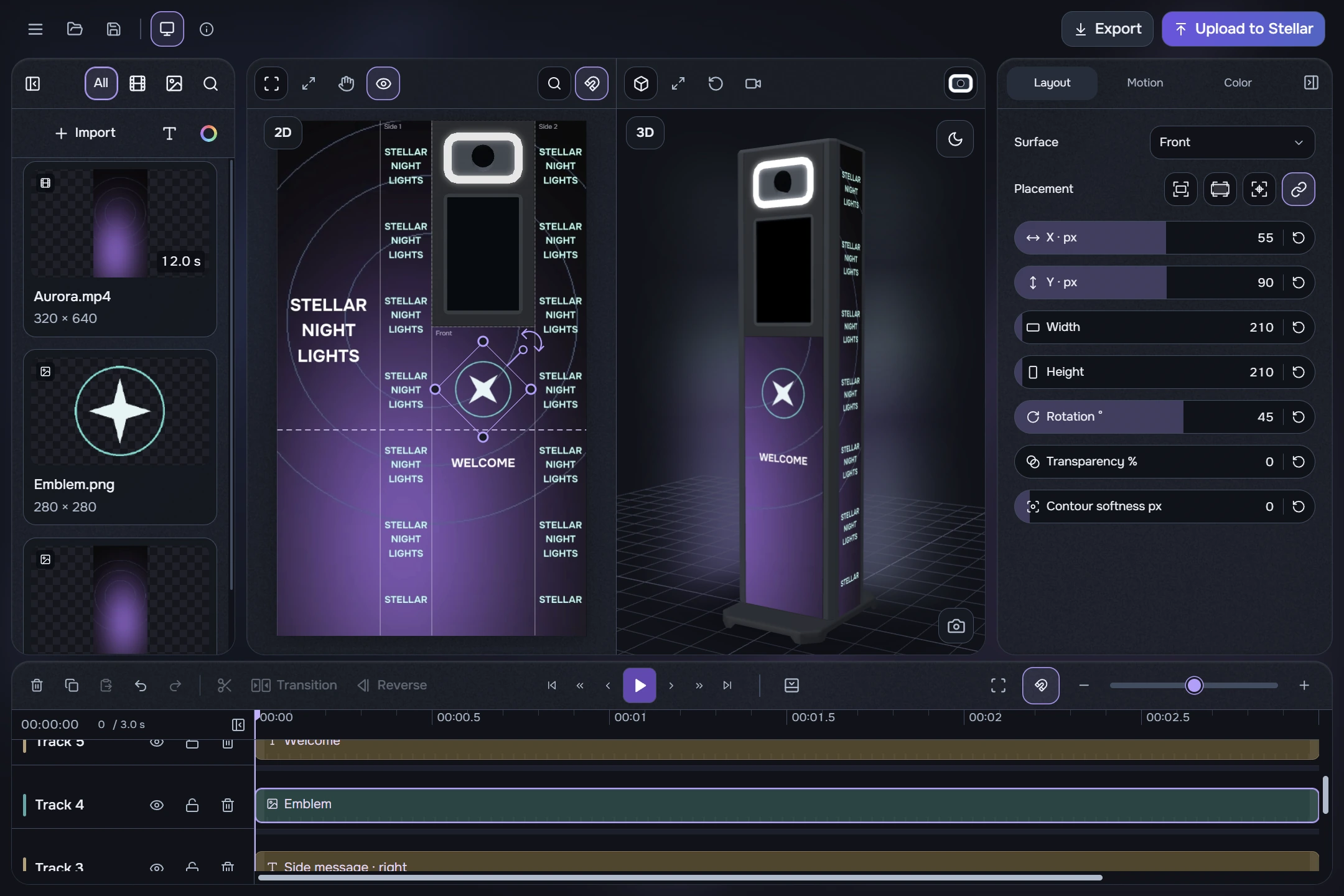
Enable Magnetic snapping in the 2D toolbar for position and size. When rotating with the pointer, it catches multiples of 45° within 3°. Disable it for free rotation. Numeric angle entry and keyboard rotation are not forced to 45° increments. The timeline magnet is independent.