Arrange your workspace and use 2D
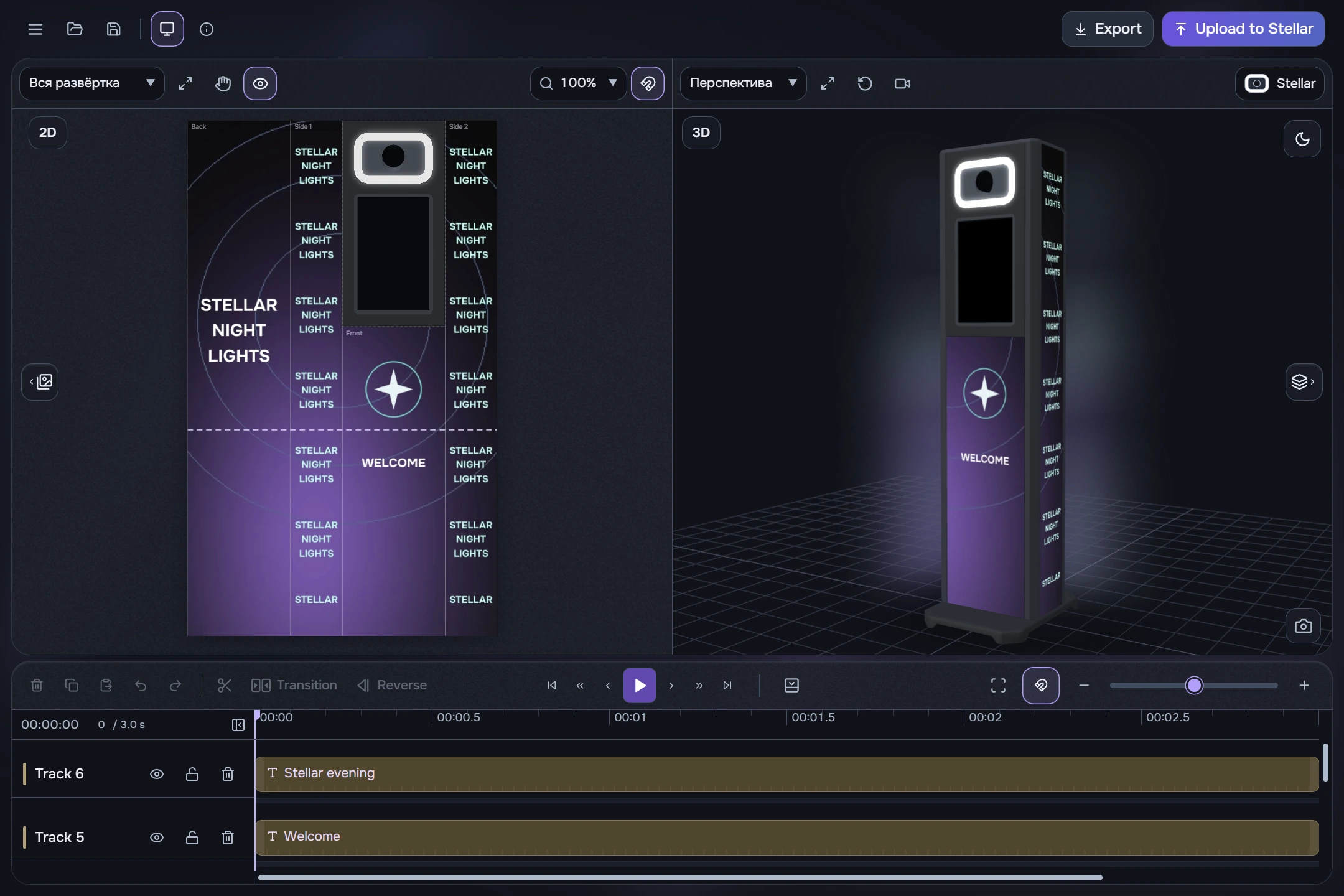
Hide the media library and layer panel using their header buttons. Reveal either panel with its separate button at the corresponding preview edge. A hidden panel frees all its space. Drag panel edges or the divider between 2D and 3D to resize them.
The monitor icon in the main header switches between one and two previews. Single-view mode keeps the last used view; the 2D/3D tabs let you switch it. A narrow workspace may switch to one preview automatically.
Move the view itself
- Wheel over 2D zooms in/out. Shift+wheel pans horizontally; Alt+wheel pans vertically.
- Click the hand tool or press H to toggle panning; its button is highlighted when active. Hold the middle mouse button to pan temporarily.
- Scrollbars appear above 100% zoom. Panning is bounded so the canvas cannot disappear far outside the window.
The old view-options menu is replaced by the direct Magnetic snapping button in 2D. It affects position, resizing and pointer rotation; the timeline magnet is independent. Two previews require enough workspace width.