Prepare a program for the booth
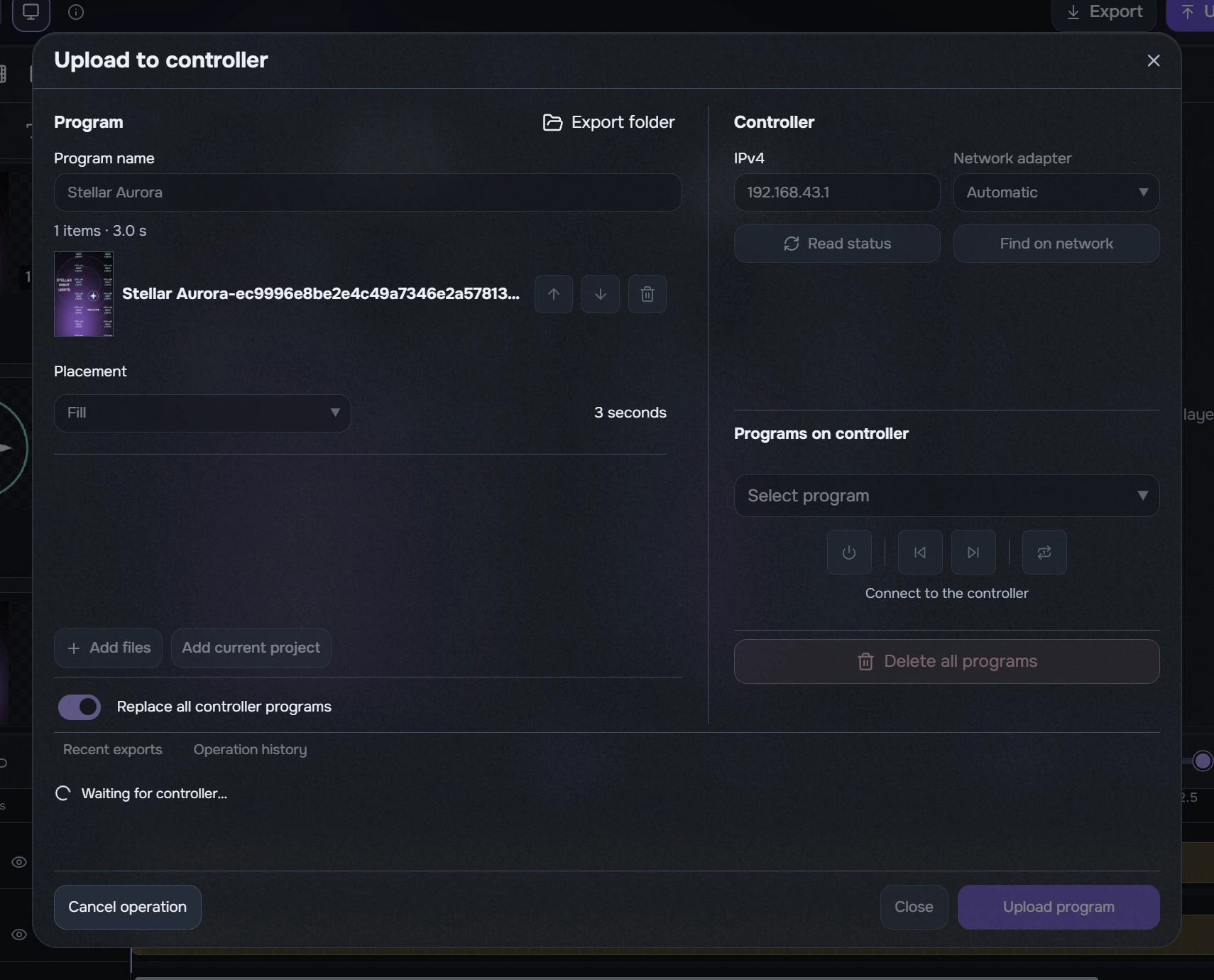
- Open Upload to Stellar from the header or export result. A program on the booth consists of one or more files shown in sequence.
- Enter a clear program name. If you came from export, the finished MP4 is already queued. Otherwise use Add files or Add current project and wait for preparation.
- Reorder files with the arrows; the bin removes an item from the queue. New items use Fill. Select Fit when keeping the whole image visible is more important.
- A video’s duration is shown on the right and is not edited here. Set a still image’s display duration. Check the complete order and program name.
A small window may use tabs for its areas. The file queue scrolls. Long list names and the selected adapter may end in an ellipsis without changing the stored value.
Export folder opens the directory containing exported videos, ready to add to a program.
Connect and upload
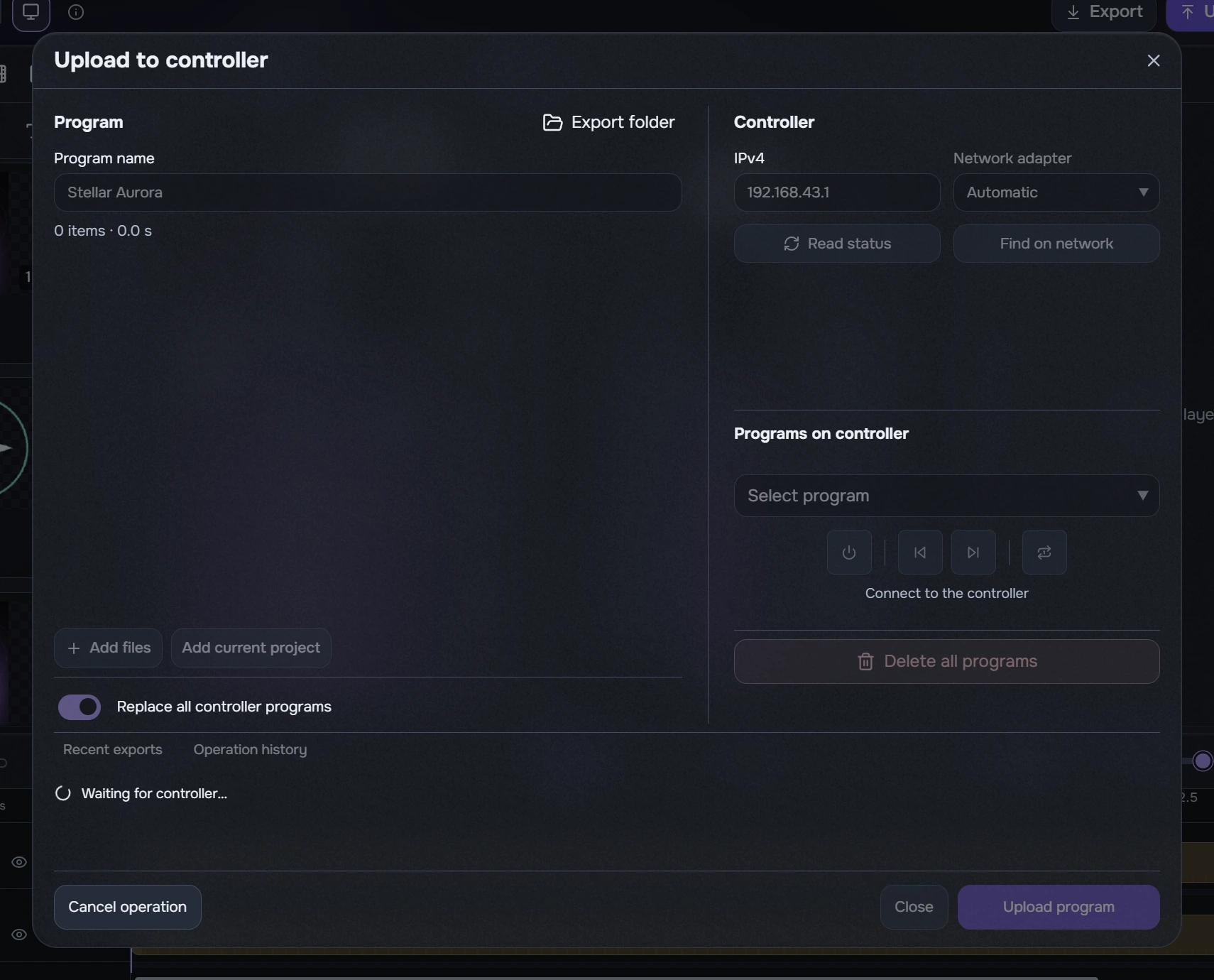
- Power on the booth and connect the computer to its controller’s network. For Wi-Fi, use the network name and password on the controller. For Ethernet, use a reachable local network; discovery depends on its configuration.
- Enter the booth’s IPv4 address and select the network adapter if needed. Read status queries that address; Find on network discovers the device. Use a known IP directly.
- Check Replace all controller programs. It is on in a new profile. Turn it off to append a program while keeping existing programs. Leave it on for complete replacement and read the confirmation carefully.
- Click Upload program and watch preparation, transfer and verification. Wait for a confirmed result: 100% file transfer alone does not mean program verification has finished.
Confirmed replacement removes the device’s previous programs. It cannot be undone; local sources, projects and exports remain. Cancelling after sending does not roll back a command already executed.
After reading status, when the catalogue is available, select the controller program from the dropdown. The standalone controller window provides the same selector.
Transfer and retry after an error
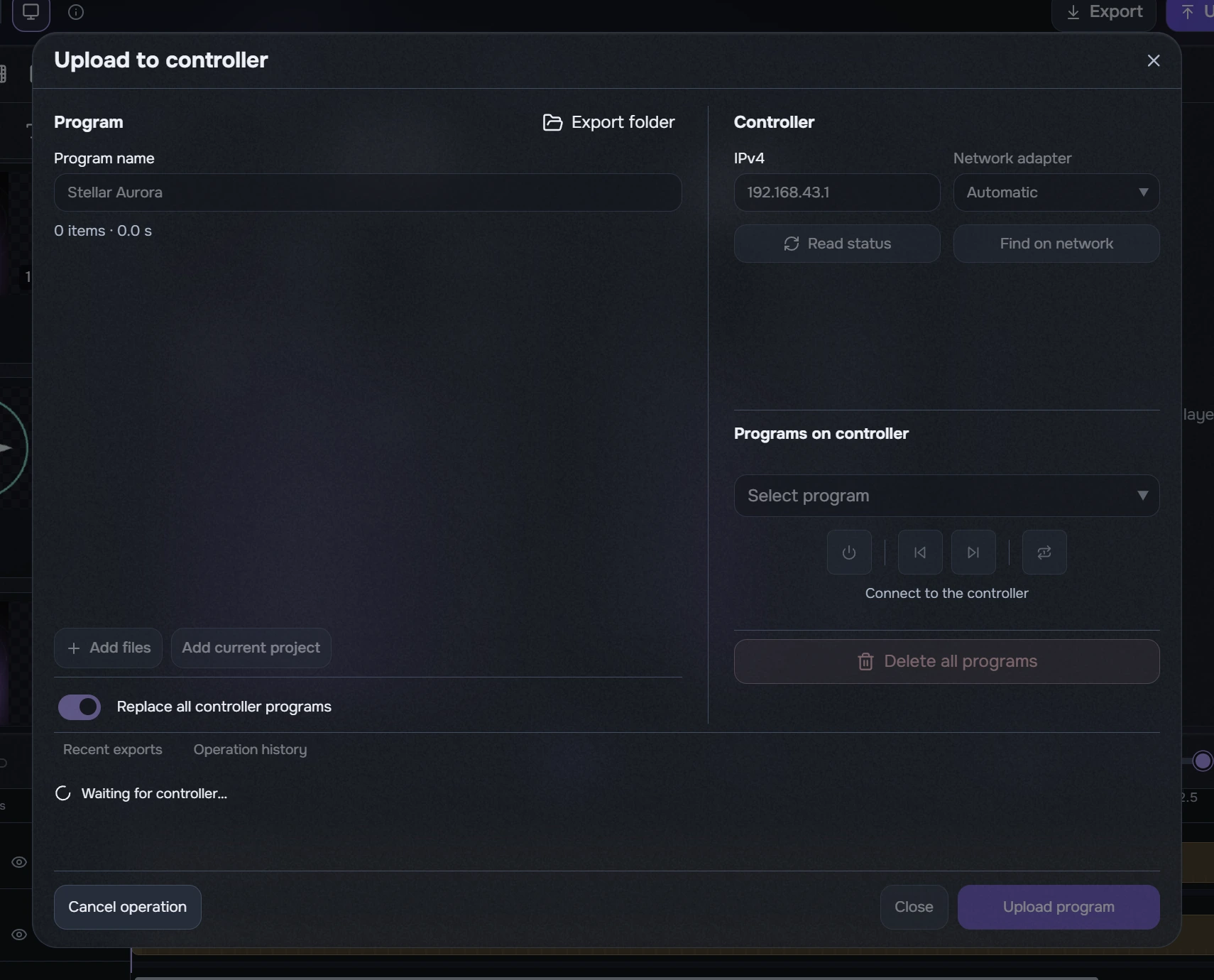
During transfer, the dialog shows progress, averaged upload speed and an estimated remaining time when it can be calculated. Transfer speed is hidden during confirmation. Wait for a confirmed result.
Communication errors are logged. Read the message, check power and network, refresh status and retry explicitly: no manual unlock is needed and retries are not automatic. After a lost acknowledgement the program may already be stored; appending again can create a duplicate. Check the catalogue first. A successful retry with Replace all controller programs replaces the existing set.