GlamBot
GlamBot is a six-axis robotic camera. MixUp Control App can read controller scenes, create local scenes, edit poses, preview movement in 3D, upload scenes, and include them in the setup’s shared Action scenes.
Safety before connecting
Section titled “Safety before connecting”- Secure the robot’s work area and remove people and objects from its path.
- Make sure the hardware emergency stop is accessible to the operator.
- Before the first movement, check the camera, cables, and base mounting.
- Do not start a scene if the app reports a warning, kinematics error, active emergency stop, or controller-not-ready state.
- The 3D preview helps evaluate a path but does not replace a physical safety check.
Connection
Section titled “Connection”- Power on the GlamBot controller. The robot must not begin moving by itself.
- In MixUp Control App, tap Find Devices.
- Select GlamBot, or search for every device.
- Allow Bluetooth access.
- Find GlamBot, Robot Arm, or DT-RA and tap Connect.
- Wait for the app to read the protocol, state, scene catalog, and safety settings.
- Open the GlamBot dashboard. Before moving, confirm Initialized, Ready, and Calibrated states and verify that there are no emergency-stop or error states.
Movement controls can remain disabled until the app receives at least one valid response from the controller.
Main GlamBot sections
Section titled “Main GlamBot sections”Scenes
Section titled “Scenes”Under Scenes, you can switch between two sources:
- Controller — scenes already stored in the GlamBot controller;
- Local — scenes stored in MixUp Control App.
For a controller scene you can:
- refresh the catalog;
- load its poses for local viewing;
- select a scene and pose without moving;
- copy the scene to the local editor;
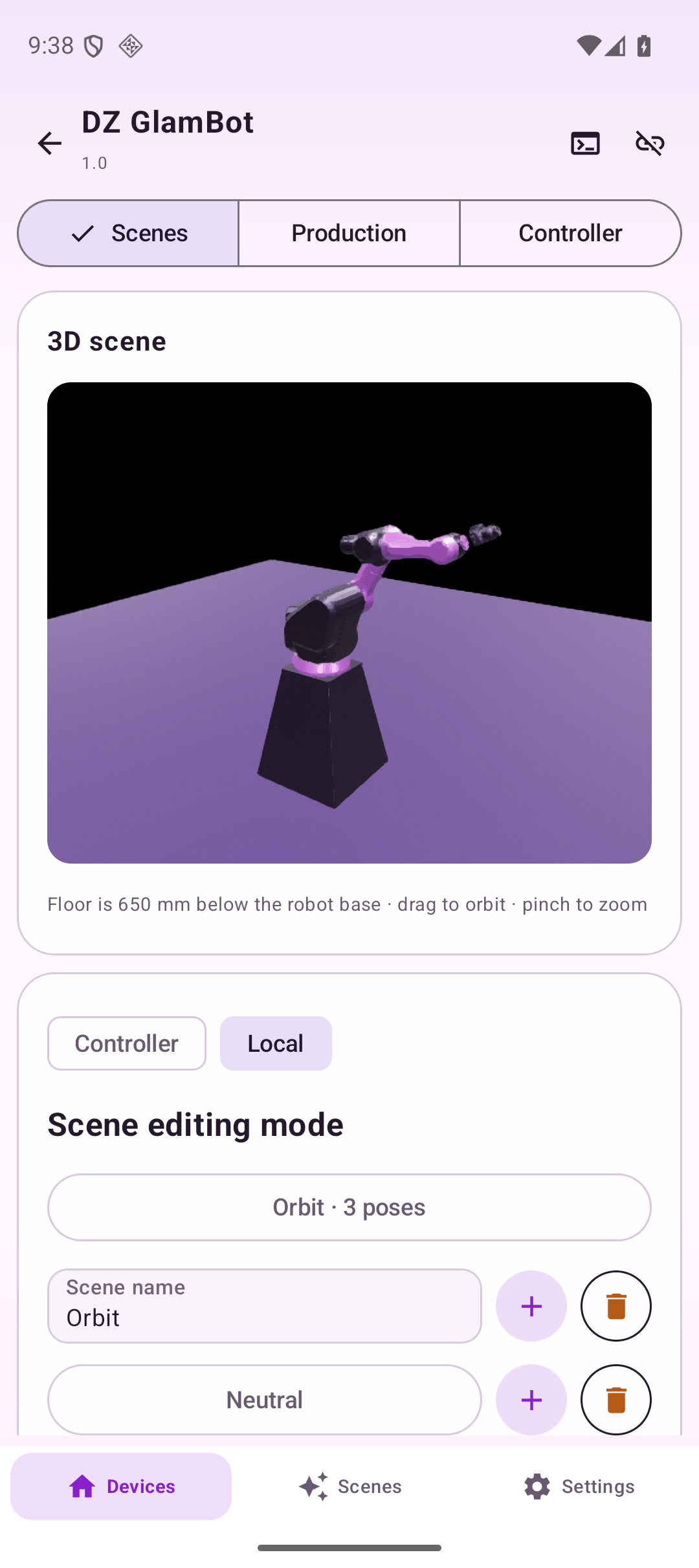
- use 3D preview and local playback simulation.
The local Play button in the simulation area does not send commands to the robot. Physical movement uses a separate command with confirmation.
Local editor
Section titled “Local editor”The app supports up to 32 scenes with up to 32 poses in each scene. You can:
- add, rename, and delete scenes;
- add and delete poses;
- import and export DTRASC files;
- edit axes A–F manually;
- use Point Tracking (IK) mode;
- set speed, acceleration, and delay for each pose;
- move the physical controller to a selected pose after confirmation;
- upload a local scene to the controller and read it back for verification.
| Pose setting | Range |
|---|---|
| Axis A | −110…110° |
| Axis B | −60…120° |
| Axis C | 0…130° |
| Axis D | −180…180° |
| Axis E | −110…110° |
| Axis F | −360…360° |
| Pose speed | 1–200 |
| Pose acceleration | 10–150 |
| Delay before next pose | 0–15 s |
| Special delay | −1 — stop the scene on this pose |
In tracking mode, the operator sets axes A–C and the point that the front camera should face. Axes D–F are calculated automatically. Target ranges are X 1000–5000 mm, Y −2500…2500 mm, Z 0–2500 mm, and camera angle −180…180°. If the target is unreachable, the app shows a warning; that pose cannot be considered verified.
Controller and safety
Section titled “Controller and safety”The Controller section provides:
- Initialization;
- Calibration/Homing;
- state refresh;
- local-scene upload;
- physical playback of a local scene;
- scene stop;
- EMERGENCY STOP without extra confirmation;
- ready, movement, selected-scene/pose, and error states;
- a service protocol console.
Safety settings include:
- pre-collision detection;
- collision response: pause or stop;
- limit-switch protection;
- adaptive synchronization;
- the emergency-stop system.
After changing safety settings, tap Apply and Verify. The app preserves controller service bits that are not exposed in the user interface.
Control screens
Section titled “Control screens”Scenes and 3D preview
Section titled “Scenes and 3D preview”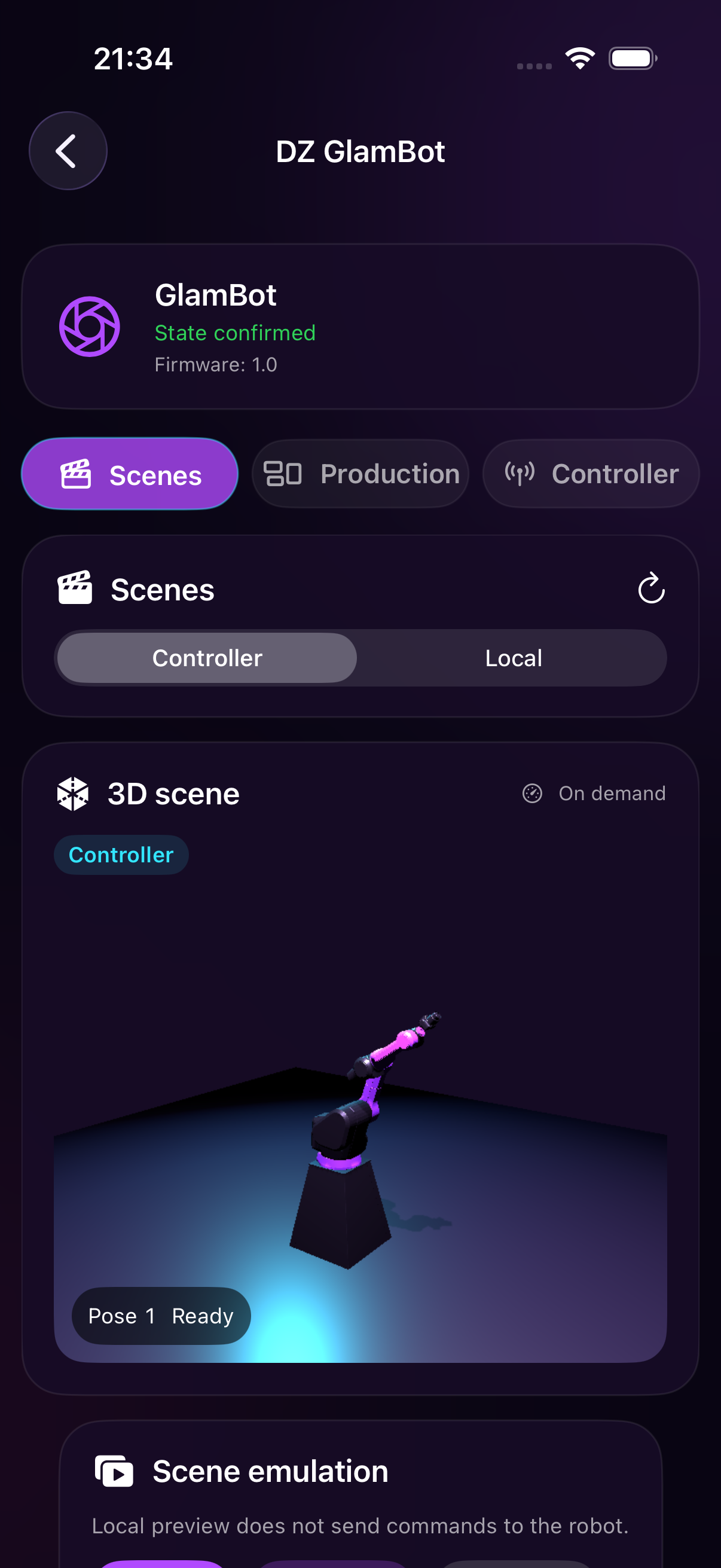
Work states
Section titled “Work states”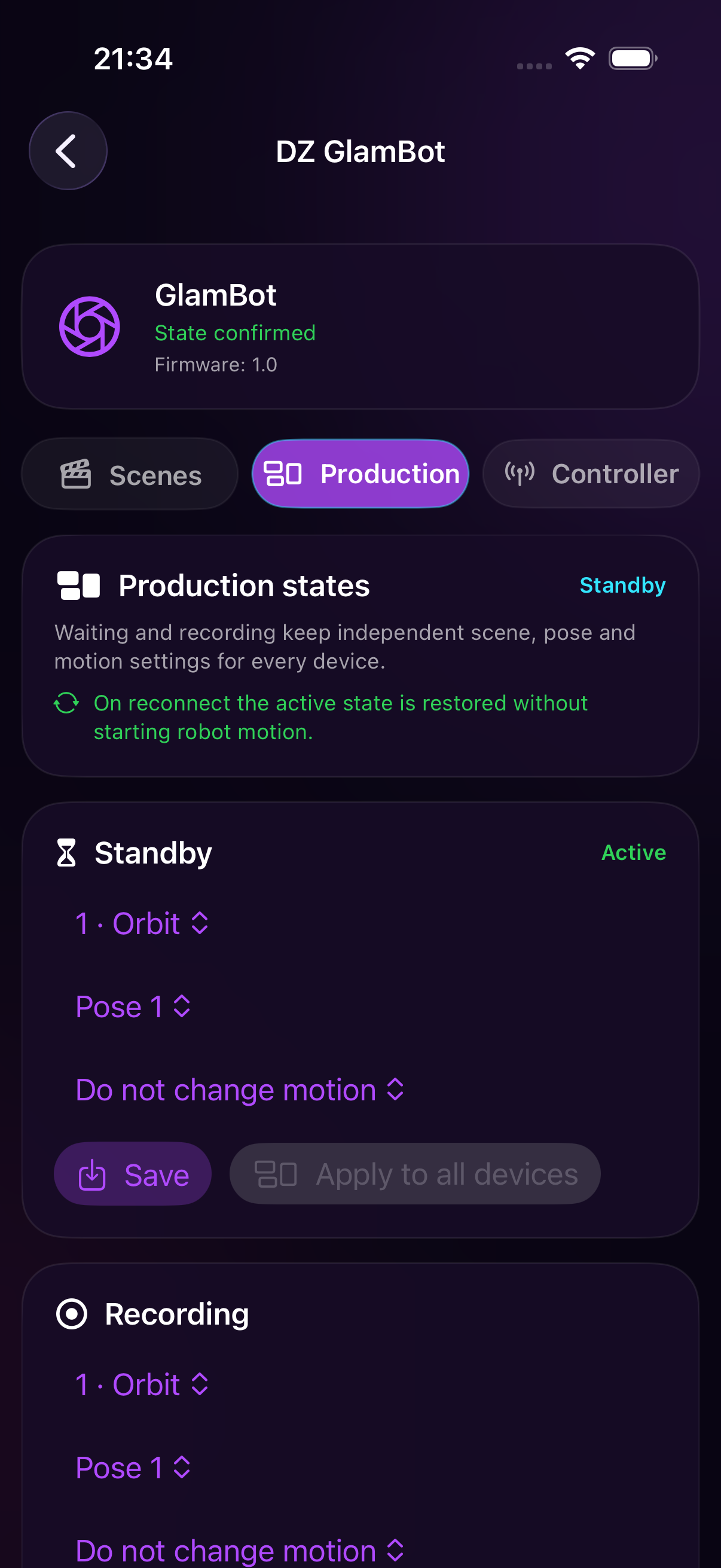
Configure GlamBot for an Action scene
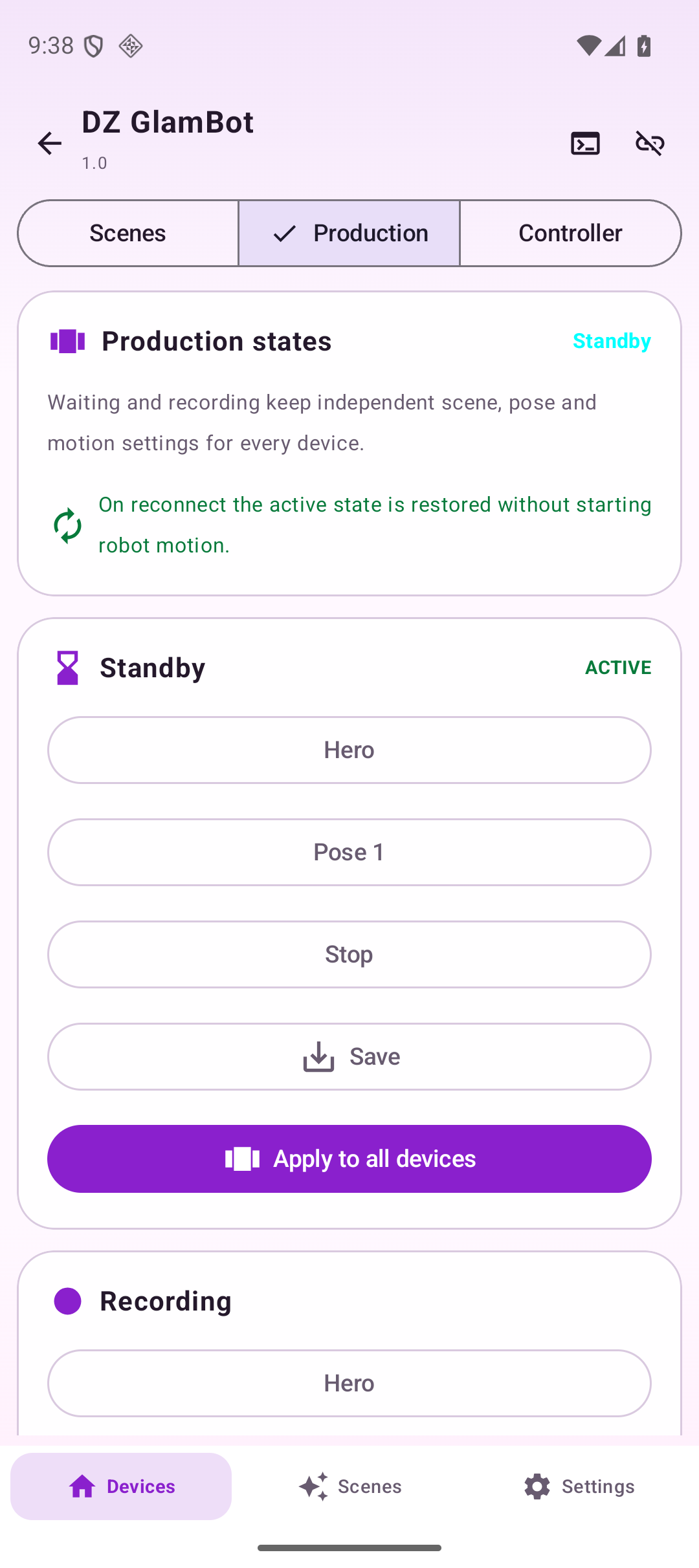
Section titled “Configure GlamBot for an Action scene”GlamBot has a dedicated Production section where scene, pose, and movement action are configured independently for Waiting and Recording.
- Refresh the controller scene catalog.
- Open Production.
- In the Waiting card, select a controller scene and initial pose.
- Select an action:
- Do Not Change Movement — only select the scene and pose;
- Stop — stop the running scene;
- Start After Confirmation — start the selected scene;
- Move to Pose and Stop — physically move to the selected pose and remain there; this also requires confirmation.
- Tap Save.
- Repeat the setup for the Recording card.
- Apply to All Devices switches GlamBot and every other device configured for this Action state.
If Move to Pose and Stop is not available in your app version, select the scene and pose without movement or start the scene after confirmation.
Notes and useful practices
Section titled “Notes and useful practices”- Selecting a controller scene or pose does not start movement by itself.
- Uploading a local scene overwrites the selected controller slot but does not start the robot. The app reads the scene back after upload for verification.
- Physical scene start, movement to a pose, and Action-scene start require operator confirmation.
- After reconnection, the app may restore the selected scene, pose, safety settings, and a safe stop command. Movement does not resume automatically.
- Use the 3D preview first, test individual poses at low speed, and only then run the complete scene.
- A delay of −1 is useful for the final pose: the robot reaches it and stops scene playback.
- EMERGENCY STOP is sent immediately. After resolving the cause, check the physical area and controller state before reinitializing.
- Do not run the service board test while the robotic arm is connected. It is intended only for prepared hardware diagnostics.
For combined device workflows, see Group control and Action scenes.