Add readable text
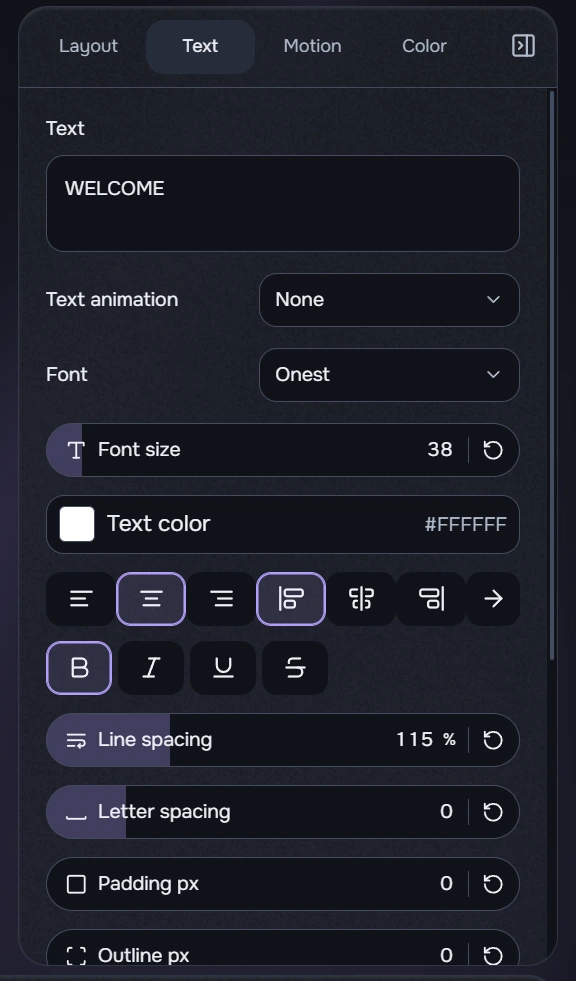
- Click T in the library and select the new text clip. Put it above the background and extend it over the required part of the video.
- In Layout, choose Front and place the frame in the visible area. The illustrated example uses X = 24, Y = 400, width 272 and height 350. Check placement on the 3D model.
- In Text, enter WELCOME. The screenshot uses Onest, white and font size 38. Replace the text and adjust size and alignment for your project.
- To reveal letters, choose Typewriter and a 1 s duration. Return to the clip start and press Play. Text animation is off in the screenshot; choose the effect separately.
The letter reveal time is separate from the clip’s length. Scrolling text uses speed and the available direction controls instead. Font, alignment, style, spacing, outline and shadow are also set here. Hover over an unfamiliar icon for its tooltip.
Text frame and shadow
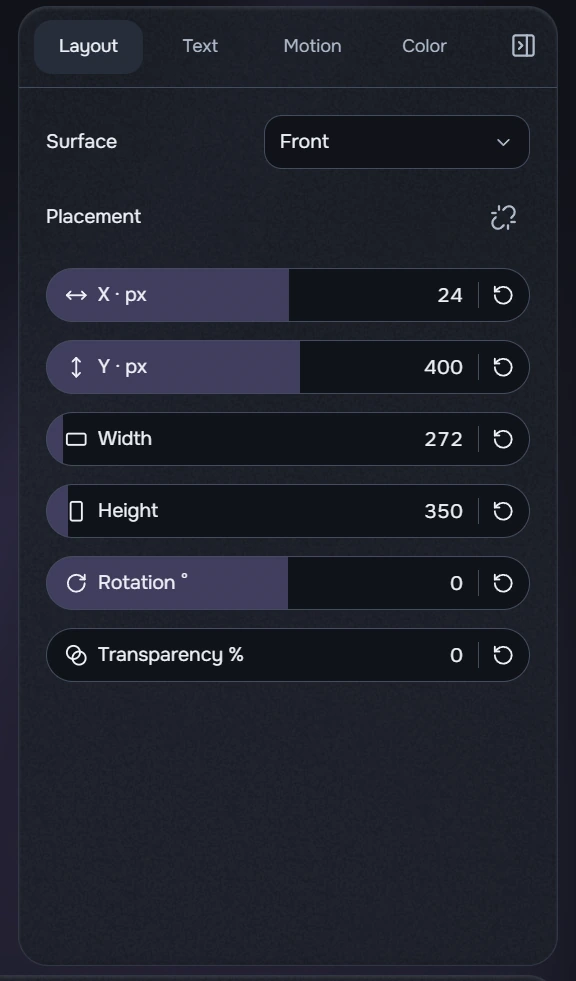
Resizing the text frame does not imply changing the font size. Use the text frame’s own ratio chain in Placement, then check wrapping, outline and spacing.
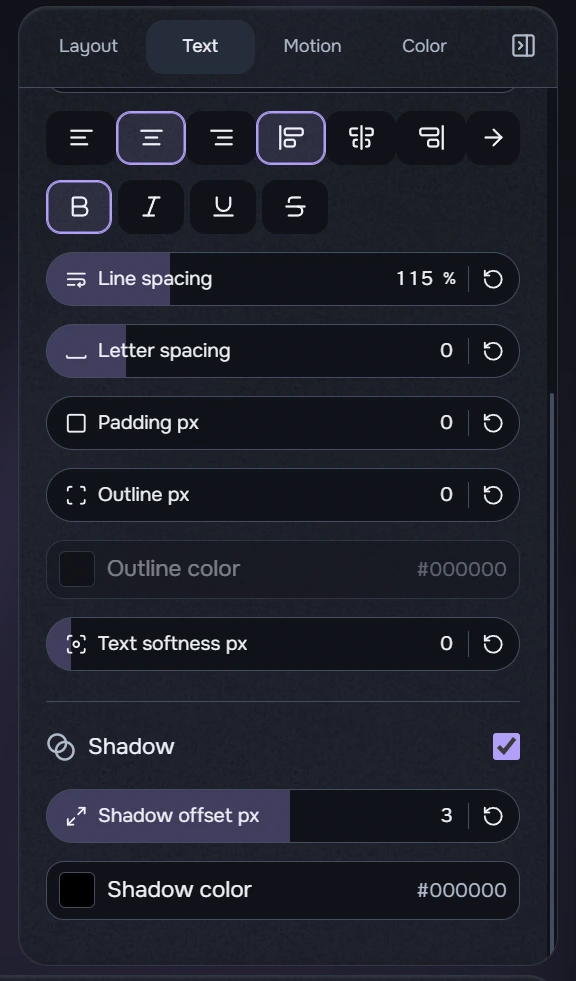
Scroll down the Text tab to Shadow and enable it. Fields keep their position when off but cannot be edited. A locked layer also disables editing. Text animation, reveal duration, scrolling speed and available directions depend on the selected mode; fields outside the crop still apply.